How to Reduce Lag Android In Games 2026: Deeply Explained
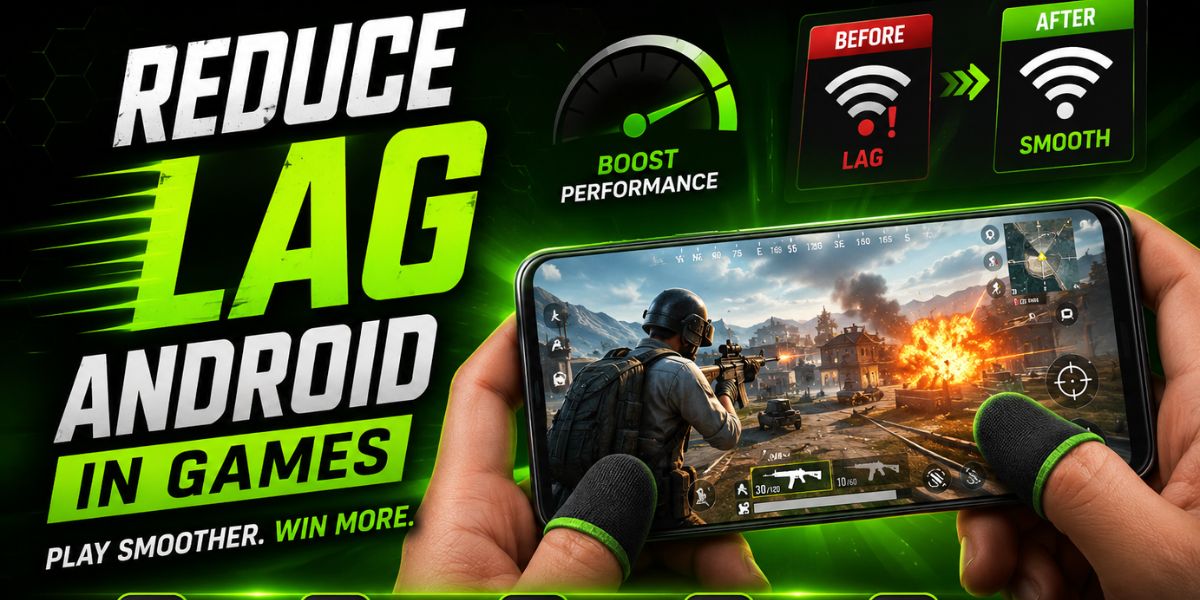
Mobile gaming has become more advanced in 2026, with Android games offering console-quality graphics, online multiplayer modes, and AI-powered gameplay features. Many players still experience lag, frame drops, overheating, and delayed controls while gaming. These issues can ruin the gaming experience, especially in competitive titles like battle royale, racing, and shooting games.
Lag usually occurs due to limited RAM, overheating, unstable internet connection, outdated software, or poor game optimization. There are many ways to improve gaming performance on Android devices. This guide explains how to reduce lag Android in games using safe, updated, and practical methods that work on both budget and flagship smartphones.
Why Android Games Lag in 2026
Android games are much heavier because developers now use high-resolution textures, advanced lighting systems, real-time multiplayer features, and AI-enhanced graphics. Budget phones may struggle to handle these requirements smoothly. Lag can happen due to low RAM, weak processors, overheating, storage issues, or unstable internet connections. Background apps also consume resources while gaming.
Some games are poorly optimized for certain devices, causing frame drops and stuttering. Battery-saving modes can reduce CPU performance and create delays during gameplay. Understanding the main causes of lag helps users choose the right solutions.
Restart Your Android Phone Before Gaming
Restarting your Android phone before gaming is one of the easiest ways to reduce lag. Phones running for long periods collect temporary files and background processes that consume RAM and processing power. A simple restart refreshes system memory and automatically closes hidden apps. This allows your device to focus more resources on gaming performance.
Android phones are smarter at memory management, but restarting still improves stability, especially during long gaming sessions. Many professional mobile gamers restart their devices before competitive matches for smoother gameplay. This quick method can reduce frame drops, improve touch response, and make demanding Android games run more efficiently.
Free Up Storage Space for Better Gaming
Low storage space is a common reason for Android gaming lag. Modern mobile games often require large storage for graphics, updates, and downloadable content. When internal storage becomes nearly full, the phone struggles to load game files quickly. Keep at least 20% of storage free for smoother performance.
Delete old videos, duplicate photos, unnecessary downloads, and unused apps. Move files to cloud storage if possible. Many Android devices also include built-in storage cleaning tools that safely remove junk files. Maintaining enough free storage improves loading speed, reduces stuttering, and helps games run more smoothly during online and offline gameplay sessions.
Close Background Apps While Gaming
Background apps use RAM, battery, and internet data even when they are not actively open. Social media apps, messaging services, browsers, and streaming platforms constantly refresh data in the background. This reduces the resources available for gaming. Before launching a game, close unnecessary apps manually through recent android apps or battery settings.
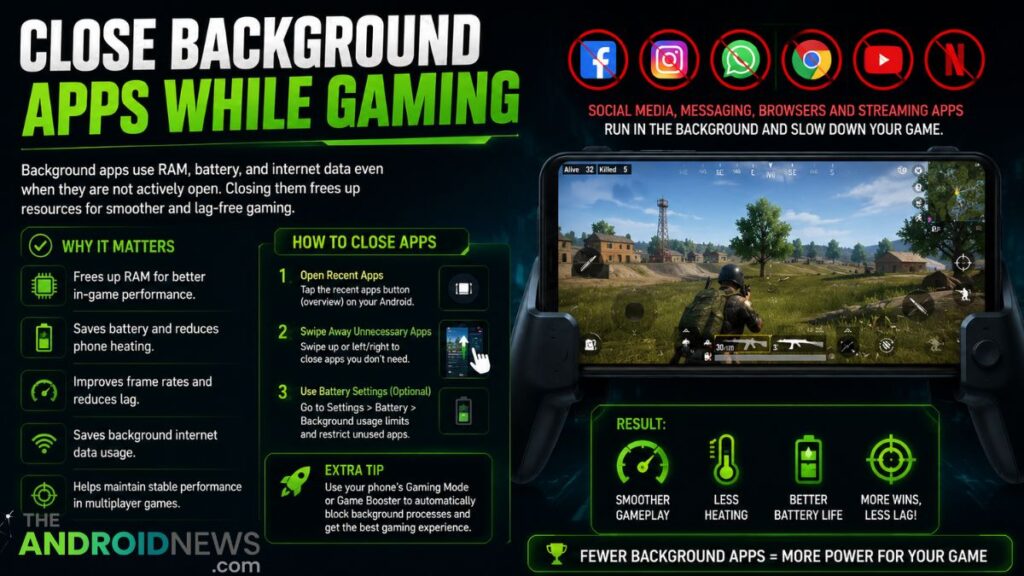
Some Android phones offer gaming modes that automatically block background processes during gameplay. Limiting background activity can improve frame rates and reduce overheating. It also helps maintain stable performance in multiplayer games where fast response times are important. Fewer background apps mean more power available for smooth Android gaming performance.
Enable Game Mode on Android Phones
Many Android smartphones now include dedicated Game Mode or Gaming Turbo features designed to improve gaming performance. These modes optimize CPU usage, reduce notifications, block calls, and allocate more system resources to games. Gaming modes also improve touch sensitivity and network stability on supported devices.
Brands like Samsung, Xiaomi, ASUS, OnePlus, and vivo continue enhancing gaming tools with AI-based optimization features. Enable Game Mode through phone settings or gaming applications before starting a game. This feature can reduce lag, improve frame stability, and create a smoother gaming experience. It is especially useful for competitive online games and graphics-intensive mobile titles.
Lower Graphics Settings in Games
High graphics settings look impressive, but they require strong hardware to run smoothly. If your Android phone lags during gameplay, lowering graphics settings can improve performance significantly. Reduce texture quality, shadows, anti-aliasing, and visual effects inside game settings. Lowering frame rate limits may also help weaker devices maintain stable gameplay.
In 2026, many games include advanced graphics options designed for flagship devices, which budget phones may struggle to handle. Prioritizing performance over ultra graphics usually provides smoother gameplay and better control response. Competitive gamers often use medium or low settings intentionally because stable frame rates are more important than visual quality during fast-paced gaming sessions.
Keep Your Android Phone Cool
Overheating is a major cause of gaming lag on Android devices. When phones become too hot, processors automatically reduce performance to protect internal components. This process, called thermal throttling, lowers frame rates and causes stuttering. Avoid gaming while charging because it increases heat generation significantly.
Remove thick phone cases during long gaming sessions to improve airflow. Play games in cooler environments and avoid direct sunlight. Gaming phones will use better cooling systems, but heat management is still important for all devices. Cooling fans and external gaming accessories can also help. Keeping your phone cool improves performance stability and extends battery lifespan during gaming.
Use a Stable Internet Connection
Online multiplayer games require fast and stable internet connections for smooth gameplay. Lag caused by network problems is different from hardware lag and usually appears as delayed movement, teleporting characters, or connection errors. Many competitive Android games use cloud servers and real-time synchronization, making a stable internet even more important.
Use Wi-Fi instead of weak mobile data whenever possible. Stay close to the router and avoid downloading files while gaming. Restarting the router may also improve network performance. For serious competitive gaming, Wi-Fi 6 and faster broadband connections provide lower latency. A stable internet connection helps reduce ping and improve multiplayer gaming performance.
Update Android Software and Games
Software updates often include performance improvements, bug fixes, and better compatibility for modern games. Outdated Android versions or old game files may cause crashes, lag, or overheating issues. Always update your games through the Google Play Store and install official Android system updates from your device manufacturer.
Developers frequently release optimization patches for new gaming features and hardware compatibility. Updated software helps improve graphics performance, battery efficiency, and network stability during gameplay. It also fixes security vulnerabilities that could affect device performance. Keeping both your Android system and games updated ensures smoother operation and reduces common gaming problems significantly over time.
Clear Game Cache Regularly
Games store temporary files called cache to load faster, but excessive cache data may eventually cause lag and performance issues. Large cache files can become corrupted or outdated after updates. Clearing the game cache removes unnecessary temporary data without deleting your saved progress.
Go to Android settings, open app management, select the game, and choose clear cache. Many online games regularly download new textures and event files, increasing cache size rapidly. Clearing the cache occasionally improves loading times and helps fix random crashes or freezing issues. This simple maintenance method is especially useful for games that suddenly become slow after updates or seasonal content additions.
Avoid Fake Gaming Booster Apps
Many Android users install gaming booster apps expecting instant performance improvements, but most of these apps provide little real benefit. Some even display ads, consume battery, or run unnecessary background services. Android already includes built-in RAM and performance management systems that handle resources automatically.
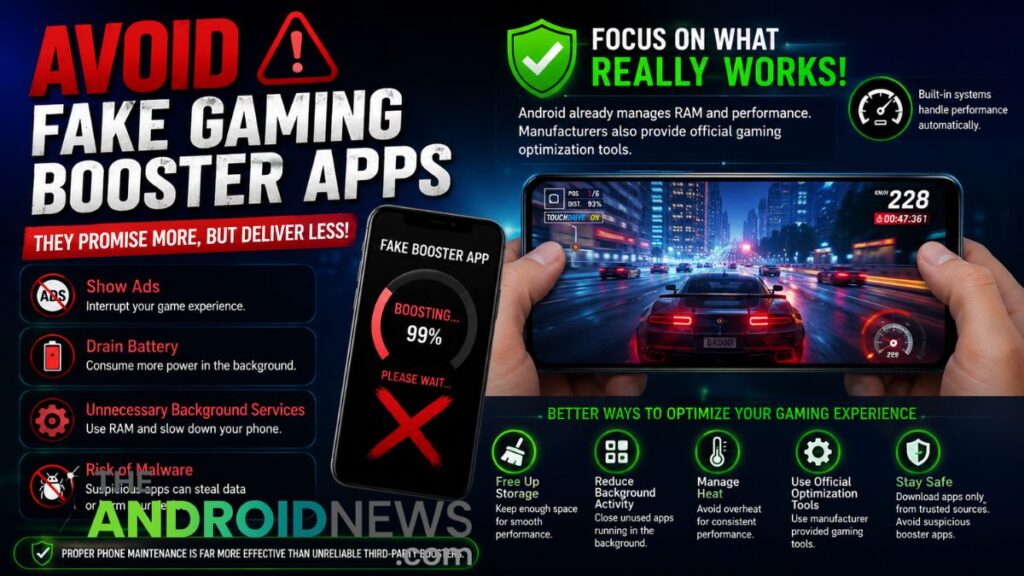
Manufacturers will also provide official gaming optimization tools on many devices. Instead of relying on fake boosters, focus on genuine optimization methods like freeing storage, reducing background activity, and managing heat properly. Avoid downloading suspicious booster apps from unknown sources because they may contain malware. Proper phone maintenance is far more effective than using unreliable third-party gaming boosters.
Use Lite Apps While Gaming
Heavy apps running in the background can affect gaming performance. Switching to lite versions of social media and messaging apps helps reduce RAM and battery usage. Apps like Facebook Lite or Messenger Lite use fewer system resources compared to full versions. Lightweight applications will remain useful for users with budget Android phones or limited RAM.
Web versions of some services can also reduce system load. By minimizing resource-heavy apps on your device, more processing power becomes available for gaming. This improves multitasking efficiency and reduces lag during long gaming sessions. A cleaner and lighter phone setup can make Android games run noticeably smoother overall.
Optimize Battery Settings for Gaming
Battery-saving modes are useful for extending battery life, but they often reduce processor speed and graphics performance. This can create lag and frame drops while gaming. Before playing demanding Android games, disable aggressive battery saver modes and enable high-performance settings if available.
Some phones automatically switch to performance mode during gaming, while others require manual activation. Charging levels also affect gaming performance because low battery percentages may trigger power-saving restrictions automatically. Keeping your battery above 30% during gaming helps maintain stable performance.
Use External Gaming Accessories
Gaming accessories can improve Android gaming performance and comfort. Cooling fans help reduce overheating, while gaming controllers improve control precision in supported games. External triggers are also popular for shooting games because they provide faster reactions compared to touchscreen controls. Many accessories are designed specifically for mobile esports and competitive gaming.
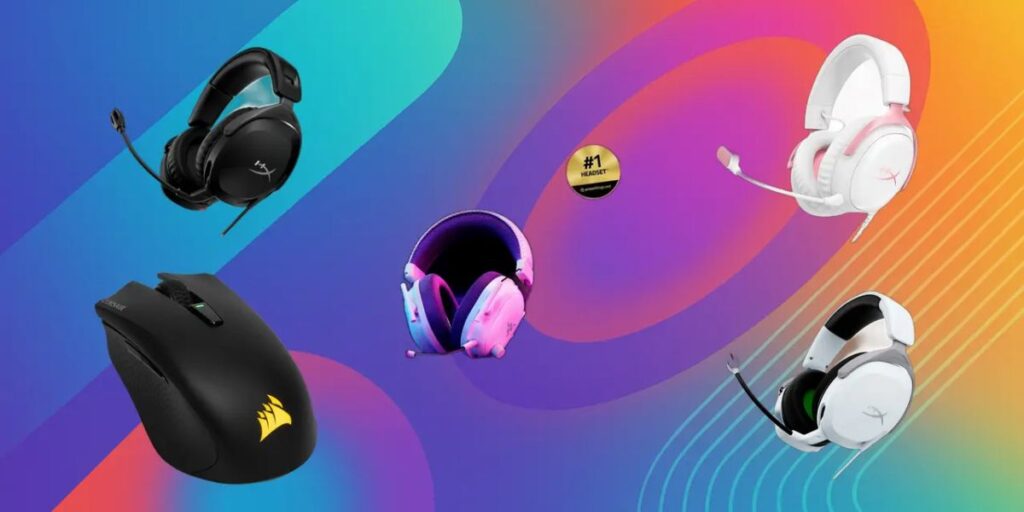
Some gaming docks even include charging support and cooling systems for long sessions. While accessories do not directly increase processor power, they help maintain stable performance and improve gameplay experience. Choosing quality accessories from trusted brands ensures better durability, compatibility, and gaming comfort during extended Android gaming sessions.
Reduce Notifications and Interruptions
Notifications during gameplay can interrupt concentration and reduce gaming performance. Incoming calls, messages, app alerts, and social media notifications consume processing power and may cause frame drops in some situations. Use Do Not Disturb mode or Gaming Mode to block interruptions while playing. Android phones will offer smarter notification control systems that automatically silence alerts during gaming sessions.
Reducing interruptions improves focus and creates smoother gameplay, especially in online multiplayer games where quick reactions matter. Some games may even disconnect temporarily when interrupted by calls or pop-ups. Keeping notifications disabled during gaming helps maintain stable performance and improves competitive gaming results significantly.
Factory Reset for Severe Lag Problems
If your Android phone continues to lag badly in games after trying every optimization method, a factory reset may help restore performance. Corrupted files, outdated settings, and hidden software issues can affect gaming speed. Resetting removes unnecessary data and restores the phone to a cleaner state.
Before performing a reset, back up important files, photos, and contacts because all personal data will be erased. Factory resets remain one of the most effective solutions for older devices suffering from severe lag. After resetting, install only essential apps and games to maintain smoother long-term gaming performance on Android devices.
Best Habits for Smooth Android Gaming
Maintaining smooth gaming performance requires good long-term habits. Keep your phone updated, avoid filling storage, and clean unnecessary files regularly. Do not install suspicious apps or modified APK files because they may contain malware that slows down the device. Avoid excessive gaming while charging to reduce overheating and battery damage.
Restart your phone occasionally and use stable internet connections for multiplayer gaming. Mobile games will continue to become more demanding, making regular maintenance even more important. Users who care for their Android devices properly often enjoy better frame rates, reduced lag, and longer device lifespan without needing expensive upgrades every year.
Reduce Lag Android In Games FAQs
Why do Android games lag?
Android games usually lag because of low RAM, overheating, background apps, weak internet, or outdated software. Heavy graphics settings can also slow down gameplay.
How can I reduce lag in Android games?
You can reduce lag by clearing background apps, enabling Game Mode, lowering graphics settings, updating your phone, and using a stable Wi-Fi connection.
Does freeing storage improve gaming performance?
Yes. Keeping at least 15–20% storage free helps Android run smoother and reduces frame drops during gaming sessions.
Can overheating cause game lag?
Yes. When a phone overheats, the processor slows down automatically to protect the device, which causes FPS drops and stuttering.
Do gaming booster apps really work?
Some gaming booster apps can improve performance by clearing RAM and blocking background processes, but they cannot fully upgrade weak hardware.
Reduce Lag Android In Games: Final Thoughts
Learning how to reduce lag in Android games is essential for enjoying smooth gameplay in 2026. Modern mobile games require powerful hardware, stable internet, and proper device optimization to run efficiently. Lag can happen because of overheating, low storage, outdated software, or excessive background activity, but most issues can be fixed with simple maintenance techniques.
By freeing storage, lowering graphics settings, enabling Game Mode, and keeping your phone cool, you can significantly improve gaming performance. Regular updates and smart usage habits also help maintain stable frame rates and reduce stuttering. Whether you play casual games or competitive esports titles, following these Android gaming optimization tips can create a faster, smoother, and more enjoyable mobile gaming experience every day.