How to Set Up Android Auto in Your Car
Android Auto has become one of the most useful driving technologies for modern vehicles. It allows drivers to connect their Android smartphones directly to their car’s infotainment system for safer and smarter driving. With Android Auto, you can access navigation, make calls, send messages, play music, and use voice commands without constantly touching your phone.
This system helps reduce distractions while improving convenience during travel. Whether you own a brand-new vehicle or an older model with aftermarket support, Android Auto is easy to set up and use. This guide explains everything you need to know about how to set up Android Auto in your car, including requirements, installation steps, troubleshooting tips, wireless connectivity, and the best features available in 2026.
What Is Android Auto?
Android Auto is a smart driving platform developed by Google that mirrors useful smartphone functions onto your car’s display screen. Instead of handling your phone directly while driving, Android Auto creates a simplified and driver-friendly interface for navigation, communication, and entertainment. The system works with apps like Google Maps, Spotify, and WhatsApp. Voice commands powered by Google Assistant make hands-free control possible, helping drivers stay focused on the road.
Android Auto is compatible with many car brands, including Toyota, Honda, Hyundai, Kia, Ford, BMW, and Chevrolet. Many newer vehicles already include built-in Android Auto support, while older cars can use compatible aftermarket head units. The system supports both wired and wireless connections, depending on your car and smartphone capabilities.
Requirements for Setting Up Android Auto
Before setting up Android Auto, you must ensure that both your smartphone and vehicle meet the requirements. First, you need an Android phone running Android 10 or newer. Older phones may still work if the Android Auto app is installed manually. Your phone should also have an active internet connection for navigation, music streaming, and voice assistant features.
Your car must support Android Auto through its infotainment system. Many vehicles manufactured after 2017 include Android Auto compatibility. If your vehicle does not support it natively, you can install an aftermarket display from brands like Pioneer, Sony, or Kenwood. A high-quality USB cable is also important for wired connections because poor-quality cables often cause connection failures.
How to Check if Your Car Supports Android Auto
The easiest way to check Android Auto compatibility is by visiting your car manufacturer’s website or checking the infotainment settings inside the vehicle. Many systems display an Android Auto icon or smartphone connectivity option in the menu. Some vehicles may require enabling smartphone integration in the settings before use.
You can also verify compatibility through the official Android Auto support page provided by Google. Thousands of vehicle models from different brands support the platform. If your car lacks Android Auto support, installing a compatible aftermarket head unit is another solution. These systems offer touchscreen controls, wireless connectivity, and additional smart features that improve driving convenience.
Downloading and Preparing Android Auto
Most modern Android phones already include Android Auto pre-installed. If it is missing, you can download it from the Google Play Store. After installation, update the app to the latest version for better performance and compatibility.
Next, enable Bluetooth, Wi-Fi, and location services on your smartphone. These features are essential for navigation and wireless functionality. You should also sign in with your Google account to access maps, contacts, calendars, and personalized voice assistant features. Allow all required permissions, such as microphone, phone calls, notifications, and contacts, to ensure Android Auto functions properly while driving.
How to Set Up Android Auto Using USB
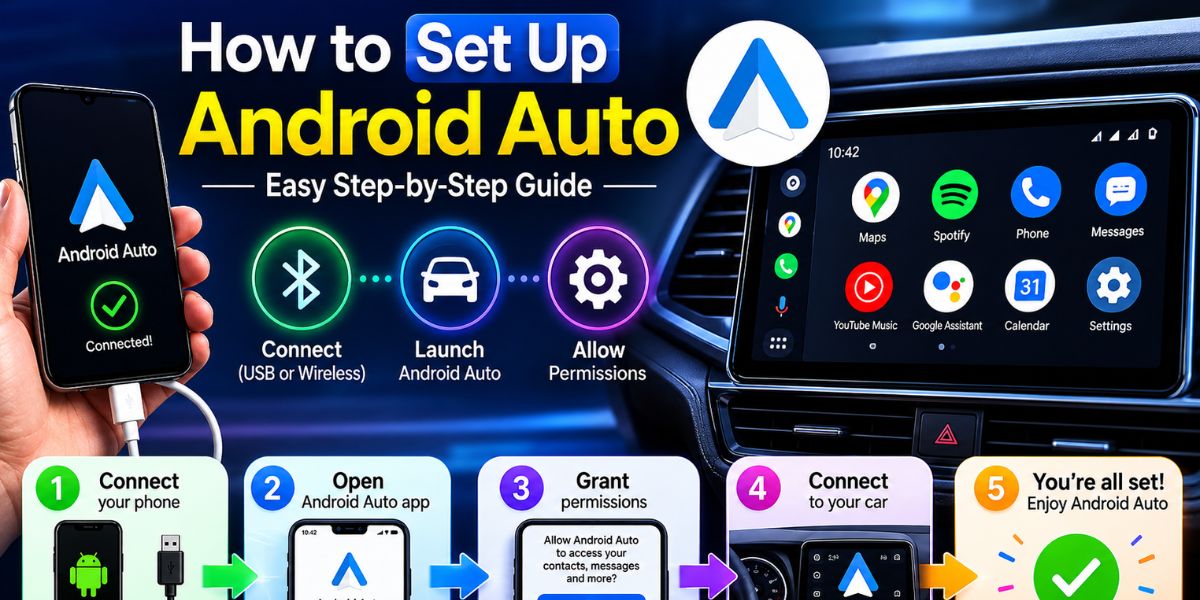
Setting up Android Auto with a USB cable is the easiest and most reliable method. Start your vehicle and turn on the infotainment system. Use a high-quality USB cable to connect your Android phone to the car’s USB port. Many vehicles have a dedicated smartphone connection port labeled with a phone or USB icon.
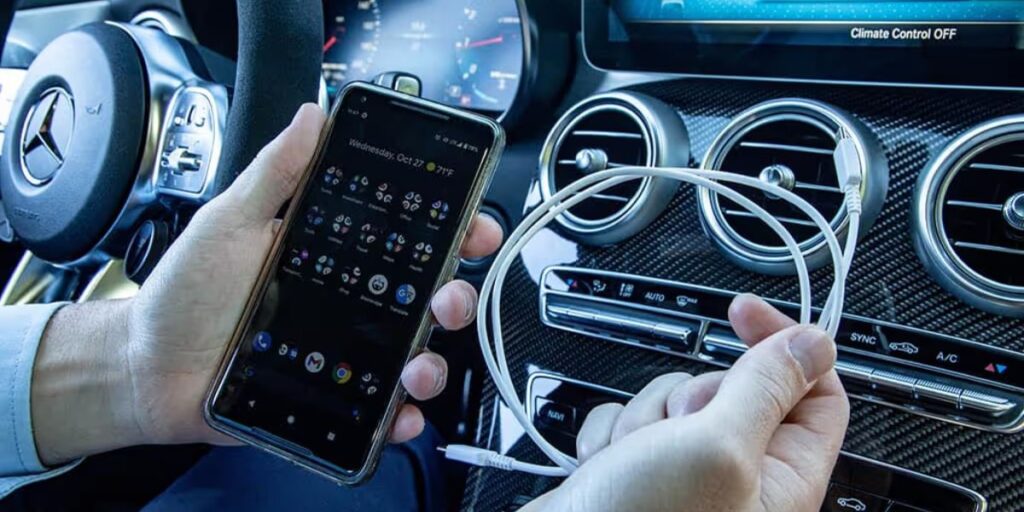
Once connected, your car display may prompt you to grant permission to launch Android Auto. Accept all prompts on both the phone and the infotainment screen. Android Auto will then automatically configure the connection and display its interface on your car screen. The first setup may take a few minutes because permissions and settings need to sync properly. After setup is complete, you can access navigation, music apps, phone calls, and messages directly from your dashboard display.
How to Set Up Wireless Android Auto
Wireless Android Auto is becoming increasingly popular in modern vehicles because it eliminates cable clutter. To set up wireless Android Auto, first connect your phone using a USB cable for the initial pairing process. Open the Android Auto settings on your phone and enable wireless connectivity.
Next, pair your smartphone with your car via Bluetooth. After successful pairing, the system may automatically switch to Wi-Fi for wireless data transfer. Follow the on-screen instructions carefully to complete the setup process. Once configured, your phone should automatically connect wirelessly whenever you enter the car.
Wireless Android Auto provides greater convenience, especially for short trips. However, it may consume more battery power than wired mode. Many drivers use wireless charging pads to keep their phones charged during use.
Best Features of Android Auto
Android Auto includes many features that improve driving convenience and safety. One of its best features is voice control through Google Assistant. Drivers can ask for directions, send messages, make calls, or control music using simple voice commands. This reduces distractions and allows safer driving.
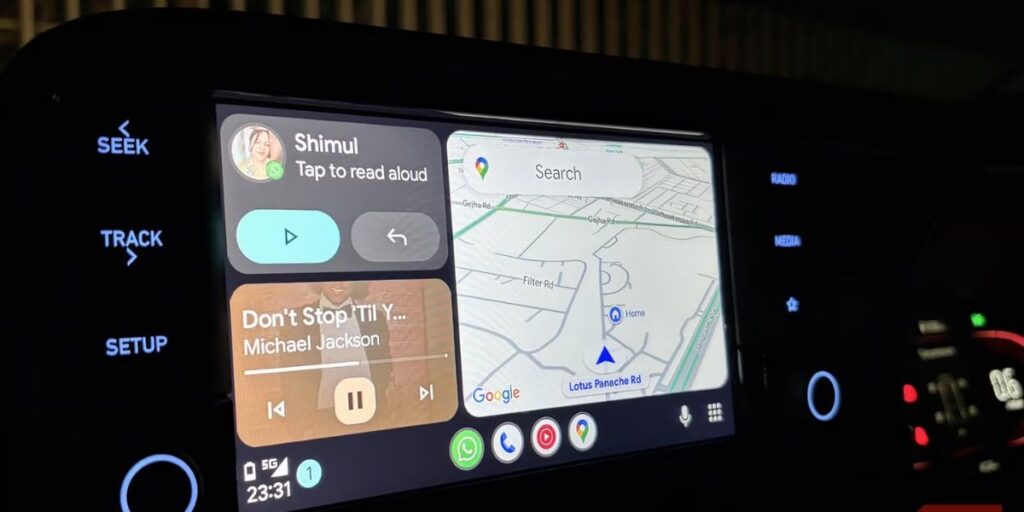
Navigation apps such as Google Maps and Waze provide real-time traffic updates, alternative routes, and speed limit alerts. Music streaming apps allow access to playlists, podcasts, and audiobooks directly from the dashboard. Messaging apps can read incoming texts aloud and allow voice replies without touching the phone.
The interface is designed with large icons and simple controls that are easy to use while driving. Split-screen support in newer versions allows navigation and media controls to appear simultaneously for improved multitasking.
Setting Up Apps on Android Auto
Android Auto supports many third-party apps for navigation, communication, entertainment, and productivity. Popular compatible apps include Spotify, YouTube Music, Audible, Telegram, Zoom, and Amazon Music. To use these apps, simply install them on your Android phone through the Google Play Store.
Open Android Auto settings on your smartphone and customize the app launcher to display your favorite apps first. You can also disable unnecessary apps to keep the interface clean and organized. Keeping apps updated ensures better performance and compatibility with newer Android Auto versions.
Common Android Auto Problems and Fixes
Although Android Auto is generally reliable, users may occasionally experience connection issues or software bugs. One common problem is the phone not connecting to the car. In many cases, using a different USB cable fixes the issue because damaged or low-quality cables often fail to transfer data correctly. Restarting both the smartphone and infotainment system can also solve temporary software glitches. Updating Android Auto, Google Play Services, and the phone’s operating system is important for compatibility.
Clearing the Android app cache can fix freezing or crashing problems. For wireless Android Auto issues, ensure Bluetooth and Wi-Fi are enabled. Removing the car pairing and reconnecting it from scratch often resolves persistent connection failures. Some battery optimization settings may also interfere with wireless connectivity, so disabling battery restrictions for Android Auto may help.
Android Auto Safety Tips
Android Auto is designed to improve driving safety, but drivers should still follow responsible usage habits. Always configure navigation and playlists before starting your journey. Avoid browsing apps or typing messages while driving, even if the interface seems easy to use. Voice commands should be used whenever possible because they reduce manual interaction with the display.
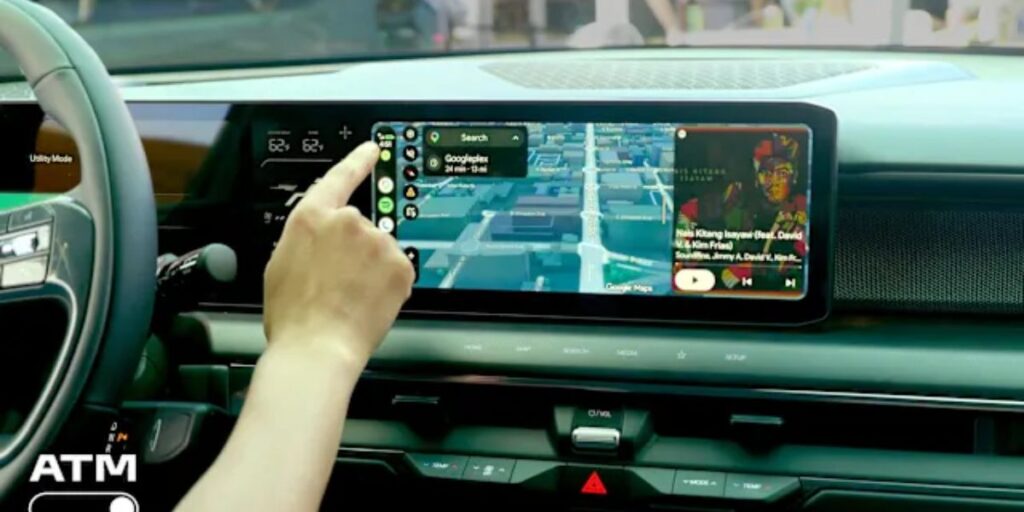
Keep your infotainment software updated to ensure security and stable performance. Mounting your phone securely and using wireless charging can also improve convenience and reduce distractions. Drivers should remember that Android Auto is a driving assistant, not a replacement for careful attention on the road. Safe driving habits remain the most important factor during travel.
Android Auto vs Apple CarPlay
Android Auto is often compared to Apple CarPlay because both platforms provide smartphone integration for vehicles. Android Auto works with Android devices, while Apple CarPlay is designed for iPhones. Both systems offer navigation, calls, music streaming, and voice assistants.
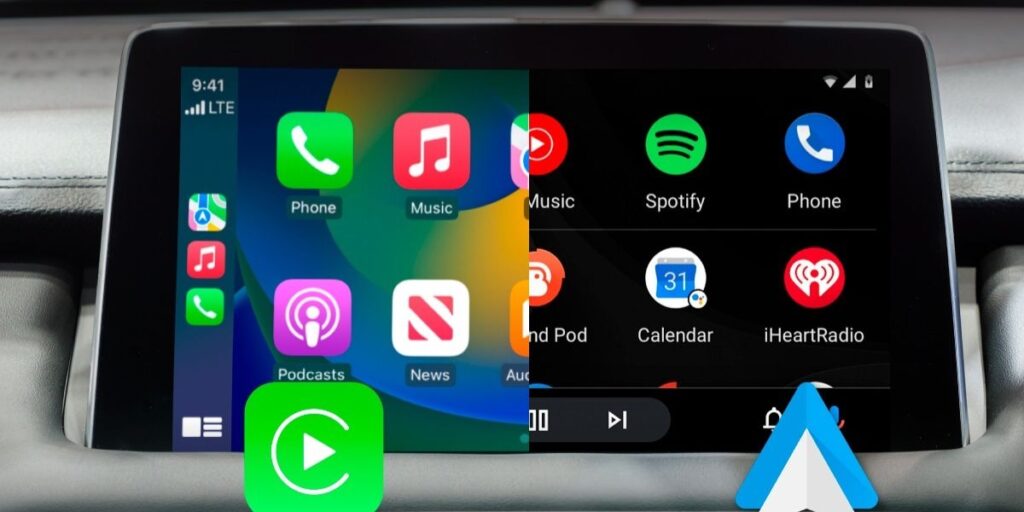
Android Auto is known for its deep integration with Google services, especially Google Maps and Google Assistant. Apple CarPlay offers a similar experience using Siri and Apple ecosystem apps. The best option depends on the smartphone operating system you already use. Both platforms continue to improve with better interfaces, wireless support, and enhanced app compatibility.
Future of Android Auto in 2026
Android Auto continues to evolve with smarter AI features and improved vehicle integration. Many newer automotive cars now support full-screen Android Auto layouts and wireless connectivity as standard features. Google is also improving voice recognition accuracy and adding better support for electric vehicle charging stations.
Artificial intelligence is helping Android Auto provide smarter route suggestions, personalized recommendations, and predictive controls. More third-party apps are also becoming compatible with the platform. Future updates may include deeper vehicle controls, allowing drivers to manage climate settings and advanced car functions directly through Android Auto.
How to Set Up Android Auto: Final Words
Learning how to set up Android Auto in your car can greatly improve your driving experience by combining convenience, entertainment, navigation, and safety into one smart platform. Whether you use a wired or wireless connection, the setup process is straightforward and only takes a few minutes.
Android Auto allows drivers to stay connected while minimizing distractions on the road. Features like voice commands, real-time navigation, music streaming, and hands-free communication make daily travel more enjoyable and efficient. By keeping your apps and software updated and following safe driving habits, you can get the best performance from Android Auto and enjoy a smarter connected driving experience in 2026.
FAQs About How to Set Up Android Auto
Do I need to download Android Auto on my phone?
Most modern Android phones already include Android Auto built in, so you usually do not need to install a separate app. Older phones running Android 9 or earlier may still require the Android Auto app from the Google Play Store.
Is Android Auto safe while driving?
Android Auto is designed to make driving safer with voice controls, navigation, and larger app icons. Even with these features, drivers should always stay focused on the road while driving.
Is Android Auto free to use?
Android Auto is completely free to use on compatible Android smartphones and supported cars. Internet-based apps may still consume your mobile data while connected.
Does Android Auto use mobile data?
Yes, Android Auto uses mobile data for apps like Google Maps, Spotify, YouTube Music, and voice commands. You can reduce data usage by downloading offline maps and music before driving.
Why is Android Auto not connecting?
Android Auto may fail to connect because of a damaged USB cable, outdated software, or Bluetooth issues. Restarting your phone and car system often helps solve most connection problems quickly.