How to Shut Down Android Phone: A Complete Guide 2026
If you want to find the simplest method How To Shut Down Android phone, you’ve come to the right spot. Regardless of whether your device is functioning properly or experiencing problems, it’s crucial to know how to power it down correctly to ensure optimal performance, battery longevity, and system reliability.
In this comprehensive guide for 2026, you will explore various techniques to shut down your Android phone such as using the power button, the settings menu, and even options for shutting it down without the power button. Let’s dive in!
How to Shut Down Android Phone: Quick and Easy Methods
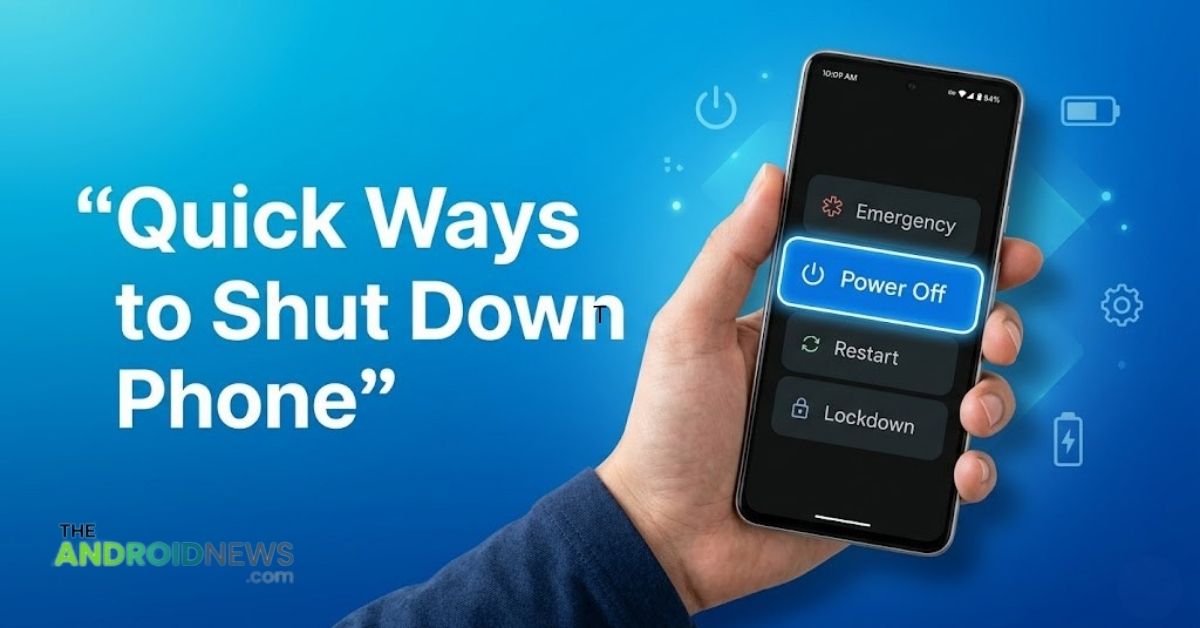
To how to shut down Android phone quickly, simply press and hold the power button until the menu appears. From there, tap on “Power Off” to shut down phone safely.
- To swiftly turn off your phone, press and hold the Power button on the side of your Android device.
- The power menu will show up in a few seconds, displaying choices such as Restart and Power Off.
- Select “Power Off” to initiate the shutdown.
- Confirm your choice if asked to ensure a safe shutdown.
- Your device will completely turn off, which can enhance its performance and battery longevity.
How to Turn Off Phone Without Power Button Easily
To fully understand how to shut down Android phone step by step, follow a simple process that works across most devices.
- Navigate to Settings:

- Swipe down from the top of your device and select the gear icon, or locate it on one of your Home screens. This is likely the simplest method using just your Android phone.
- Enable the Assistant menu (Samsung) or Accessibility menu:
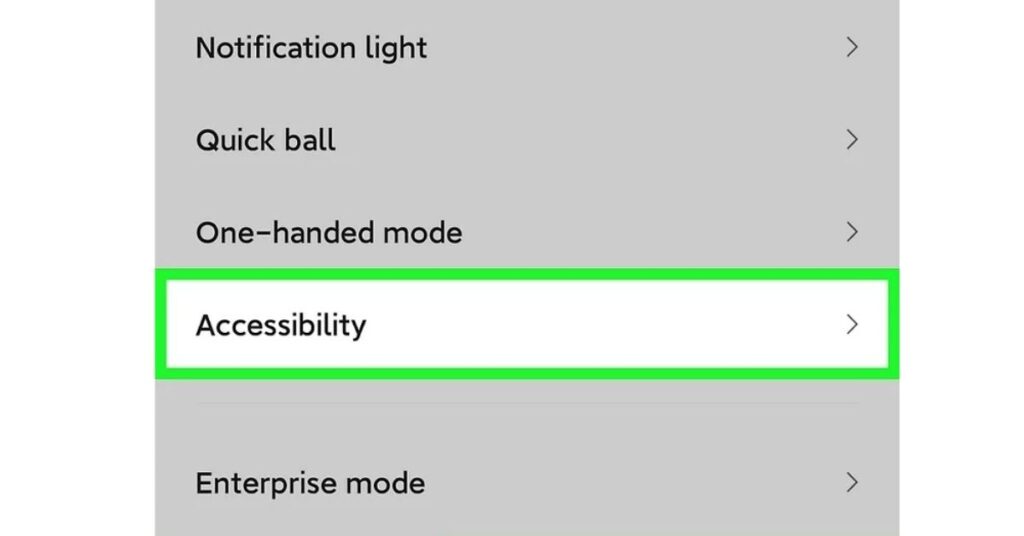
- Access Accessibility from the Settings menu.
- For Chinese brands like Xiaomi, Vivo, OnePlus, or Huawei, look under Additional settings or System.
- On a Samsung device, go to Interaction and Dexterity, then toggle on the “Assistant menu.”
- For devices from Xiaomi, Vivo, OnePlus, Huawei, etc., find the Accessibility menu and enable the toggle.
- After activating the Assistant or Accessibility menu, a floating icon will appear on your screen.
| Phone Brand | Quick Settings Power Icon Location | Alternative Access Method |
| Samsung Galaxy | Top-right corner of Quick Settings | Settings > Device care > Advanced |
| Google Pixel | Bottom of Quick Settings panel | Settings > System > Reset options |
| OnePlus | Not available in Quick Settings | Settings > System > Reset options |
| Motorola | Not available in Quick Settings | Accessibility Menu Shortcut |
| Xiaomi/MIUI | Bottom-left of Quick Settings | Settings > Additional settings |
- Select the new icon; it might display in the bottom navigation bar instead of a floating icon.
4. Press the Power Off button, which may require multiple taps to turn off the device.
Shut the Phone Down Properly Without Issues
Learning how to shut down Android phone properly helps avoid system errors and improves performance
- Before powering off your phone, make sure to exit all background applications.
- Check that no updates are being installed and no important tasks are in progress.
- Hold down the Power button and choose the “Power Off” option.
- Refrain from taking out the battery or shutting down the device abruptly unless absolutely necessary.
- Let the phone shut down completely to avoid potential data loss or software damage.
How to Turn Off an Android Phone Safely
If you want to know how to shut down Android phone safely, always close your apps before turning it off.

- Save your work and close any open applications before powering down your Android device.
- Press and hold the Power button until the shutdown options are displayed.
- Choose “Power Off” to ensure the device shuts down properly without harming the system.
- Only use a force shutdown if your device is unresponsive or frozen.
- Wait for the screen to go dark, indicating that your Android phone is completely off.
When Should You Shut Down Your Android Phone?
Most users seldom power down their devices, but taking the time to turn off your phone now and then can be advantageous. Consider shutting down your Android device in the following situations:
- The phone’s performance is sluggish
- Applications are consistently crashing
- The device is overheating
- You aim to extend battery lifespan
- You won’t be using it for an extended period
Restarting or powering off your device can help remove temporary files and revitalize system processes, resulting in enhanced performance.
Restart vs Shutdown: What’s the Difference?
Grasping the distinction between restarting and shutting down your device is essential.
- Restart: Powers off your phone and then instantly reboots it.
- Shutdown: Fully turns off the device, requiring you to turn it on manually later.
If your phone has minor issues, restarting is usually enough. However, for deeper system refresh or long breaks, it’s better to power down phone completely.
Common Problems While Trying to Shut Down Android Phone
Sometimes users face issues while learning how to shut down their Android phone.
If your phone is frozen, press and hold Power + Volume Down for 10–15 seconds. If the power button doesn’t work, use the Accessibility Menu. If your device is stuck, wait or perform a force restart.
These solutions ensure you can always turn off your Android phone safely without complications.
Final Thoughts
Shutting down your Android phone properly is a simple yet important habit that helps improve overall performance and resolve minor issues. Whether you use the power button or alternative methods, following the correct steps ensures your device stays safe and stable.
Knowing how to turn off your phone without the power button can also be helpful in unexpected situations. Regularly powering down your device supports better battery health and smooth system functioning.
FAQs
How do I shut my Android phone off?
To power off your Android phone, press and hold the power button until the power menu appears, then tap “Power off.”
How to Shut Down Android Phone without a button?
You can go to Settings > System > Advanced > Reset options, and then select “Power off.” Alternatively, use an accessibility app to facilitate shutdown without hardware buttons.
Which phone is safest from hackers?
Phones like the iPhone 14 are often cited as among the safest due to Apple’s strong security features, but Google Pixel devices also receive regular security updates.
Why can’t I switch off my phone?
If your phone is unresponsive, it may be due to a software glitch. Try a force restart by holding the power button for about 10 seconds to see if it resolves the issue.
How to shut down Android phone quickly?
Press and hold the Power button, tap “Power Off,” and confirm to shut down Android phone instantly.
Is it good to shut down Android phone daily?
Yes, occasionally shutting down your Android phone helps improve performance and battery health.