How to Turn Off Samsung Phone: Easy Methods in 2026
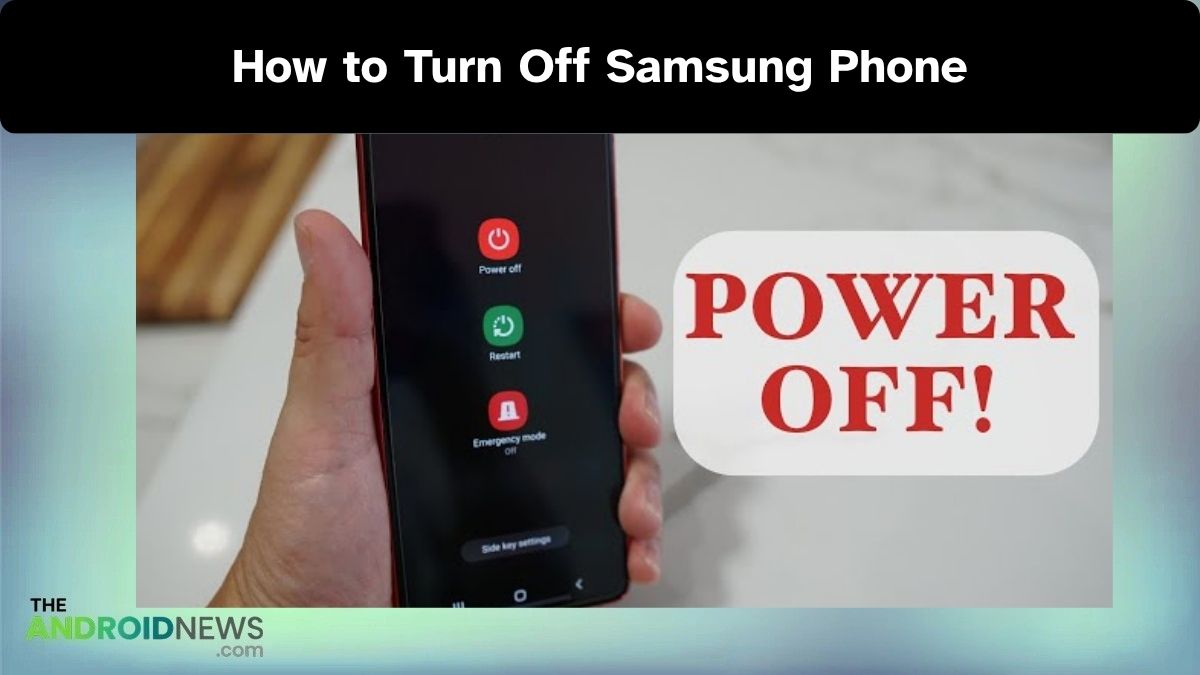
If you’re trying to figure out How to Turn Off Samsung Phone, you’re definitely not alone. Samsung has changed the way power buttons work in recent years, and it can feel a bit confusing at first especially if you’ve upgraded from an older device.
What used to be a simple press-and-hold action now involves button combinations, settings, or even voice commands. The good news is that once you understand the options, it actually becomes very easy. Let’s discuss all the latest methods in a simple, natural way so you can quickly power off your Samsung phone without any hassle.
Why You Might Need to Turn Off Your Samsung Phone?
Turning off your Samsung phone isn’t just something you do when the battery is low. It actually plays an important role in keeping your device running smoothly. Many users don’t realize that a simple shutdown can fix small bugs, refresh the system, and improve overall performance.
For example, if your phone starts lagging, apps begin crashing, or the screen becomes unresponsive, turning it off and restarting it can often solve the issue instantly. It also helps clear temporary files and background processes that may slow down your device over time.
Powering off your phone is useful when you want to save battery for later, avoid distractions, or perform updates safely. It’s a small habit, but it can make a big difference in your phone’s health and performance.
How to Turn Off Samsung Phone Using Different Easy Methods
Samsung offers multiple ways to turn off your phone, especially with the latest One UI updates. This flexibility is helpful because you can choose the method that suits you best whether you prefer using buttons, touch controls, or even voice commands.
Below are the most effective and updated methods explained in a simple way.
| Method | Action | Time Required | Difficulty Level | When to Use |
| Buttons (Side Key + Volume Down) | Press & hold both buttons → Tap Power Off | 5–10 seconds | Easy | Everyday use (fastest method) |
| Quick Settings | Swipe down → Tap Power icon → Select Power Off | 5–8 seconds | Very Easy | When buttons are not working |
| Bixby Voice | Say “Turn off my phone” | 5–10 seconds | Easy | Hands-free or multitasking |
| Side Key Settings | Change button function in settings | 20–30 seconds (one-time setup) | Medium | If you want classic power button behavior |
| Accessibility Menu | Tap floating menu → Power Off | 10–15 seconds | Easy | For accessibility or screen-based control |
| Force Shutdown | Hold buttons for 10–15 seconds | 10–15 seconds | Medium | When phone is frozen |
Using the Power Button and Volume Keys
This is the most common and widely used method on modern Android phones to turn them off. Since the power button now works as a “Side Key,” you need to use a combination of buttons instead of just one.
This method is quick, reliable, and works on almost all newer Galaxy devices. It’s especially useful when your phone is working normally and you want a fast way to shut it down.
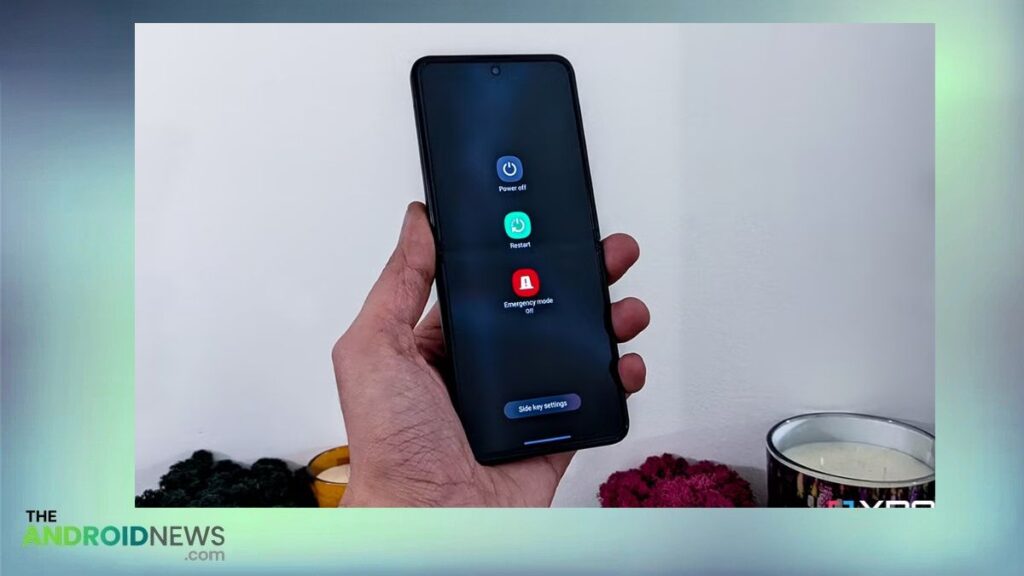
- Press and hold the Side Key (Power button) and Volume Down button together
- Keep holding for a few seconds
- Wait until the power menu appears on the screen
- Tap on Power Off
- Tap Power Off again to confirm
Using the Quick Settings Panel
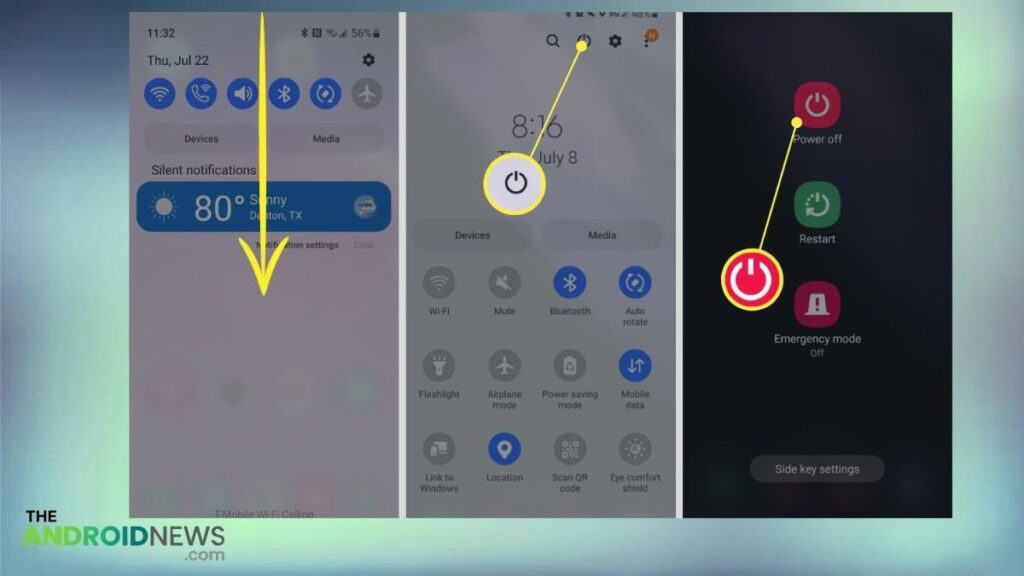
If you don’t want to use physical buttons, Samsung provides an easy on-screen option through the Quick Settings panel. This is especially helpful if your buttons are not working properly or you simply prefer touch controls.
This method is very convenient because the power option is just a swipe away. It also reduces wear and tear on physical buttons over time.
- Swipe down from the top of your screen
- Swipe down again to fully expand the panel
- Look for the Power icon at the top
- Tap on the Power icon
- Select Power Off
- Confirm by tapping Power Off again
Using Bixby Voice Assistant
Samsung’s Bixby assistant allows you to control your phone using voice commands. This method is perfect if your hands are busy or you prefer a hands-free experience.
Although not everyone uses Bixby daily, it can be very useful for simple tasks like turning off your phone. Just make sure it is properly set up beforehand.
- Activate Bixby by saying “Hi Bixby” or pressing the Bixby key
- Say “Turn off my phone”
- Wait for the confirmation prompt
- Confirm the command
Using Side Key Settings (Customize Power Button)
By default, holding the Side Key may open Bixby instead of the power menu, which can be confusing. Luckily, Samsung allows you to customize this behavior so you can bring back the traditional power button function.
This is a great long-term solution if you want a more familiar experience when turning off your phone.
- Open Settings
- Go to Advanced Features
- Tap on Side Key
- Under “Press and hold,” select Power off menu
Using Accessibility Menu
Samsung includes accessibility features that make it easier for everyone to use their devices. One of these features is the Assistant Menu, which provides on-screen controls—including the power option.
This method is especially helpful for users who have difficulty using physical buttons or prefer a more visual interface.
- Open Settings
- Tap Accessibility
- Select Interaction and Dexterity
- Turn on Assistant Menu
- Tap the floating icon on your screen
- Select Power Off
Force Shutdown (When Phone is Frozen)
Sometimes your phone may freeze or stop responding completely. In such cases, normal methods won’t work, and you’ll need to force a shutdown.
This method should only be used when necessary, as it abruptly stops all processes. However, it’s very effective when your device becomes unresponsive.
- Press and hold the Side Key + Volume Down button
- Keep holding for about 10–15 seconds
- Wait until the phone restarts or turns off automatically
How Samsung’s Latest Features Affect Powering Off?
Samsung’s latest One UI updates have changed the way users turn off their phones, mainly by replacing the traditional power button with a multifunction Side Key. Instead of directly opening the power menu, holding this button now often activates Bixby, which can confuse users who are used to older devices.
To adapt, Samsung introduced new methods like using the Side Key + Volume Down combination or accessing the power menu through the Quick Settings panel.
At the same time, Samsung has made the process more flexible by adding customization options and software-based controls. Users can change Side Key settings, use voice commands, or enable accessibility features to power off their device.
While these updates may take some getting used to, they ultimately provide more convenience and control once you understand how they work.
Read Also: How to Turn Off Your Smartphone: A Comprehensive Guide for Samsung, Motorola, iPhone, and Google Pixel Users
Tips for Safely Turning Off Your Samsung Phone
Turning off your phone may seem like a simple task, but doing it the right way can actually help maintain your device’s performance and longevity. By following a few basic precautions, you can ensure your Samsung phone stays healthy and runs smoothly over time.
These tips are especially useful if you regularly power off or restart your device.
- Always close important apps before shutting down to avoid losing unsaved data
- Avoid force shutdown unless your phone is completely frozen
- Make sure downloads or updates are complete before turning off your device
- Restart your phone occasionally to refresh system performance
- Keep your phone’s software updated for smoother functioning
- Don’t turn off your phone while it is installing updates or resetting
Conclusion
Now you fully understand how to turn off Samsung phone using different methods available in the latest devices. Whether you prefer using buttons, touch controls, or voice commands, Samsung gives you multiple options to suit your comfort.
Learning these methods not only makes your experience smoother but also helps you manage your phone more effectively. From fixing minor issues to improving performance, a simple shutdown can go a long way. Once you get familiar with these steps, turning off your Samsung phone will feel quick, easy, and completely natural.
FAQs
How to turn off Samsung phone without power button?
You can turn off your Samsung phone without the power button by using the Quick Settings panel or the Assistant Menu from accessibility settings.
How to shut down a Samsung phone if it is frozen?
If your phone is frozen, press and hold the Side Key and Volume Down button for about 10–15 seconds to force a shutdown.
How to turn off Samsung phone using buttons?
Press and hold the Side Key and Volume Down button together until the power menu appears, then tap Power Off.