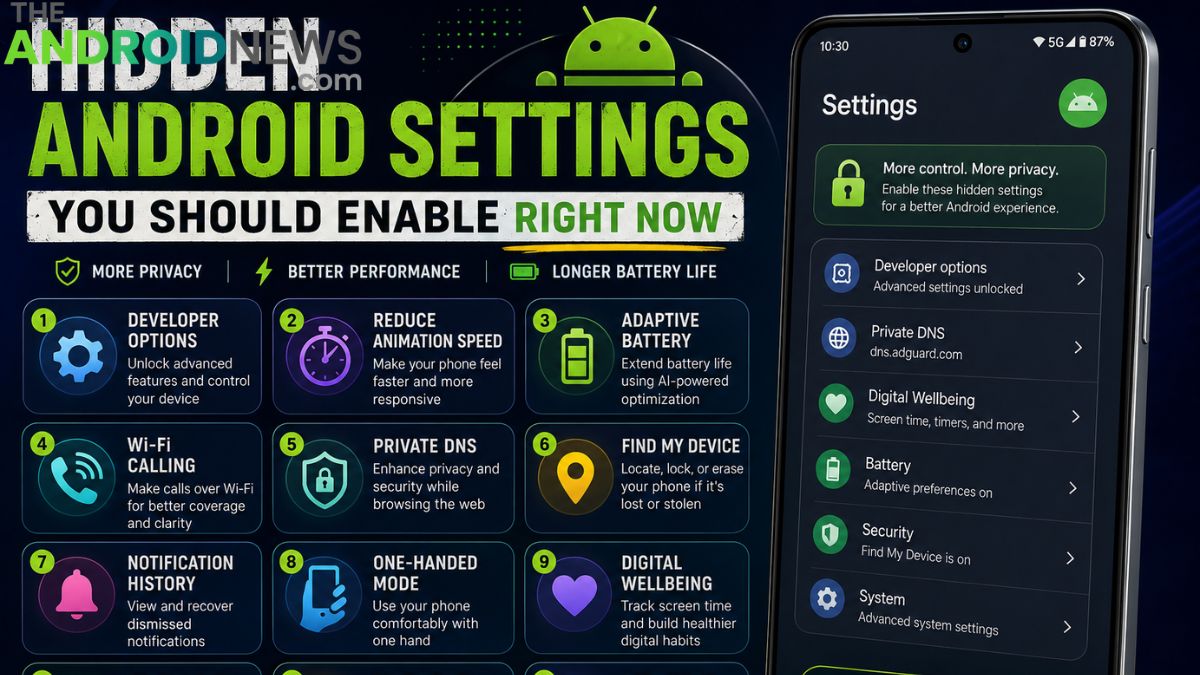
Hidden Android Settings You Should Enable Right Now
Many Android users only scratch the surface of what their smartphones can do. Beyond the standard settings menu, Android includes numerous hidden features designed to improve security, battery life, privacy, performance, and overall usability. These settings are often overlooked because they are buried deep within system menus or disabled by default.
Learning about these hidden Android settings can transform your smartphone experience and help you get more value from your device. Whether you own a Samsung Galaxy, Google Pixel, OnePlus, Xiaomi, or another Android phone, enabling the right settings can make your phone faster, safer, and more efficient.
Why Hidden Android Settings Matter
Most smartphone users never explore advanced settings because they assume the default configuration is optimal. While manufacturers do a good job setting up devices for general use, hidden Android settings often provide additional customization and control. These features allow users to enhance security, improve battery performance, reduce distractions, and personalize their devices.
Some settings are designed specifically for developers and power users, while others are useful for everyone. By spending a few minutes exploring these options, you can unlock features that improve your daily smartphone experience without installing any third-party applications.
Enable Developer Options
Developer Options is one of the most powerful hidden Android settings available. Although originally intended for developers, many of its features benefit regular users. To enable Developer Options, go to Settings, About Phone, and tap Build Number multiple times. Once activated, you’ll gain access to advanced settings that improve performance and customization.
Features such as animation speed controls, USB debugging, and background process management become available. While not every option should be modified, certain settings can noticeably improve responsiveness. This hidden menu offers deeper control over your Android device and unlocks useful advanced functionality.
Reduce Animation Speed
One of the most effective ways to make your Android phone feel faster is by reducing animation speeds. Inside Developer Options, you can adjust Window Animation Scale, Transition Animation Scale, and Animator Duration Scale. Setting these values to 0.5x or turning them off entirely makes apps open and close more quickly.
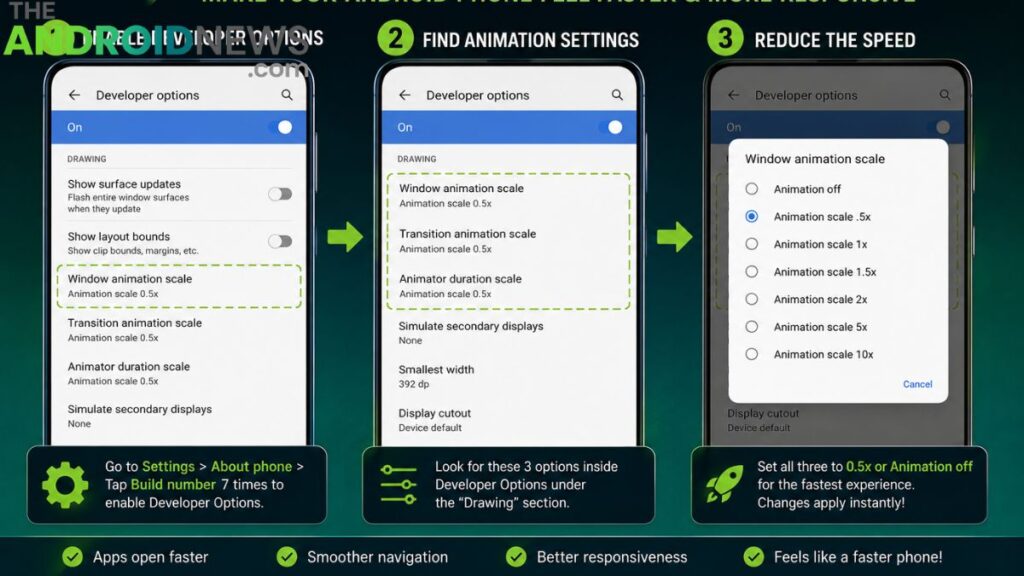
Although this does not increase actual processing power, it creates the perception of a faster and more responsive device. Many Android enthusiasts use this tweak because it improves navigation speed without affecting functionality. It’s a simple adjustment that delivers immediate and noticeable results.
Turn On Adaptive Battery
Adaptive Battery is an intelligent Android feature that uses machine learning to understand how you use your device. It prioritizes battery power for frequently used apps while restricting background activity for rarely used applications. This helps extend battery life without requiring manual intervention.
The system learns your habits and optimizes power consumption accordingly. Users who struggle with battery drain often see significant improvements after enabling Adaptive Battery. The feature works quietly in the background and becomes more effective the longer it remains active. It is one of the most useful hidden Android settings available today.
Enable Wi-Fi Calling
Wi-Fi Calling allows users to make and receive calls using a Wi-Fi connection instead of relying solely on mobile networks. This feature is especially valuable in areas with weak cellular coverage but strong internet connectivity. Many Android phones support Wi-Fi Calling, but it is often disabled by default.
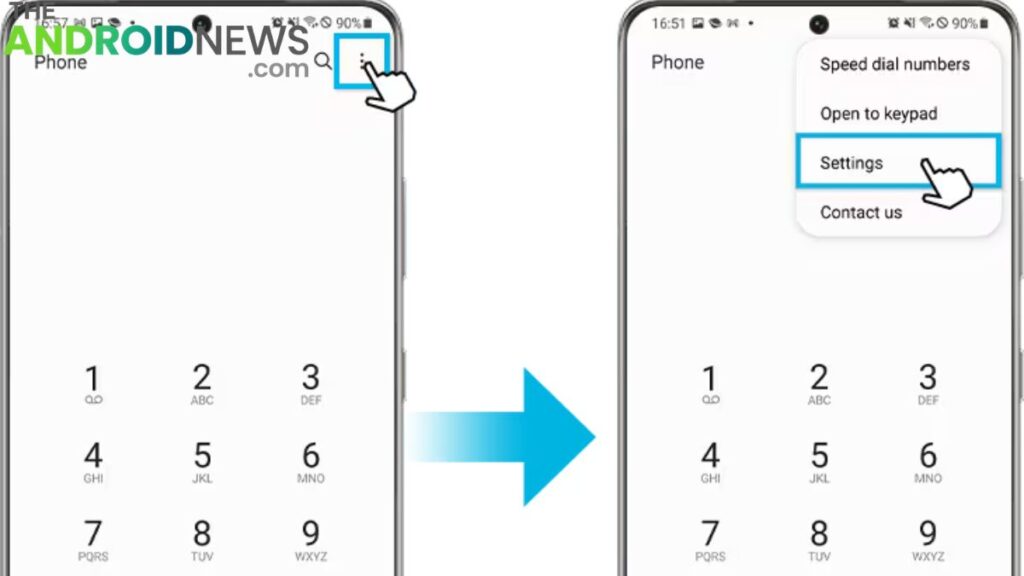
Activating it can improve call quality and reduce missed calls in challenging signal conditions. It is particularly useful indoors, where cellular reception may be limited. For users who frequently experience poor network coverage, enabling Wi-Fi Calling can greatly enhance communication reliability and convenience.
Use Private DNS for Better Privacy
Private DNS is a hidden Android setting that enhances privacy and security while browsing the internet. It encrypts DNS requests, preventing third parties from monitoring website lookups. Many Android devices support secure DNS providers that improve protection against tracking and malicious websites.
Activating Private DNS requires only a few simple steps in the network settings menu. Once enabled, it operates automatically without affecting normal internet usage. Users concerned about online privacy can benefit greatly from this feature. It provides an additional layer of protection and helps create a safer browsing experience on Android devices.
Enable Find My Device
Find My Device is one of the most important security features available on Android smartphones. It allows users to locate, lock, or erase a lost phone remotely. Many users are unaware that this feature exists or forget to activate it during device setup.
Enabling Find My Device provides peace of mind and increases the chances of recovering a misplaced smartphone. In cases where recovery is not possible, remote data deletion helps protect sensitive information. This hidden Android setting is essential for anyone concerned about security and should be enabled immediately on every Android device.
Turn On Notification History
Notification History is an incredibly useful feature that many Android users overlook. It stores recently dismissed notifications, allowing you to recover important alerts that were accidentally cleared. Whether you missed a message, email, or app notification, Notification History makes it easy to review previous alerts.
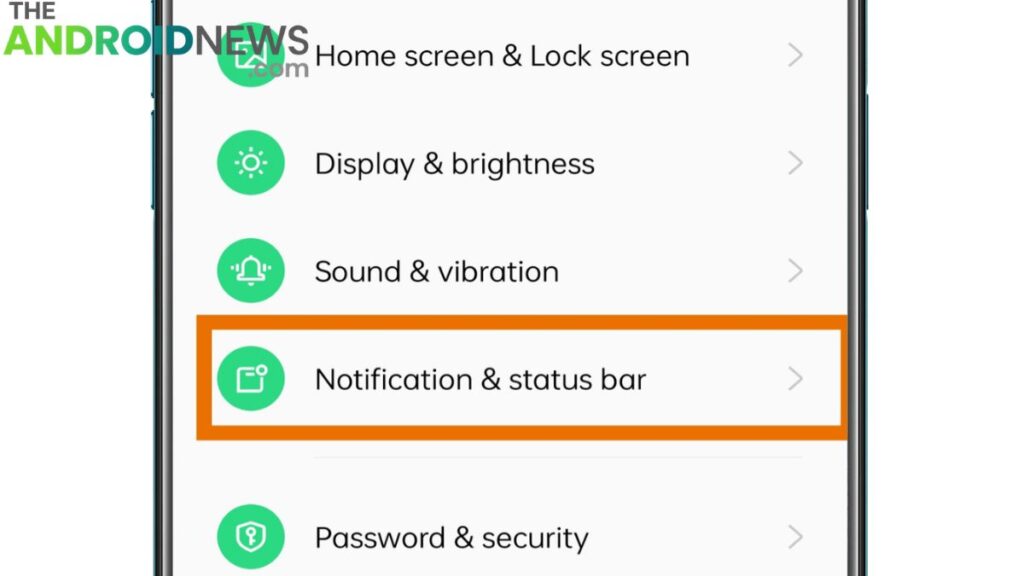
This feature is particularly helpful for busy users who receive large numbers of notifications throughout the day. Accessing it typically requires enabling the option within notification settings. Once activated, it quietly records notification activity and ensures that important information is never permanently lost.
Use One-Handed Mode
Modern smartphones continue to grow larger, making one-handed use increasingly difficult. One-Handed Mode addresses this issue by temporarily shrinking the screen interface for easier accessibility. This hidden Android setting is especially useful when walking, commuting, or multitasking.
Activating One-Handed Mode typically involves a gesture or shortcut depending on the device manufacturer. The feature improves accessibility and reduces the need to constantly adjust your grip. Users with large-screen devices often find it indispensable for daily use. It enhances comfort while maintaining access to essential apps and functions.
Enable Digital Wellbeing Features
Digital Wellbeing helps users manage screen time and maintain healthier smartphone habits. This hidden Android feature provides detailed usage statistics, app timers, focus modes, and bedtime routines. It encourages mindful device usage and helps reduce unnecessary distractions.
Users can set limits for specific applications and monitor how much time they spend on their phones each day. Focus Mode temporarily pauses distracting apps, improving productivity during work or study sessions. By taking advantage of Digital Wellbeing tools, Android users can develop better digital habits and create a healthier relationship with technology.
Activate Smart Lock
Smart Lock is a convenient Android feature that reduces the need to repeatedly unlock your phone in trusted situations. It can keep your device unlocked when connected to trusted devices, located in familiar places, or being carried by the owner. This feature balances convenience with security by recognizing safe environments.
Users who frequently unlock their phones throughout the day often appreciate the time-saving benefits. Smart Lock remains underutilized despite its practicality. When configured properly, it streamlines everyday smartphone use while maintaining adequate protection against unauthorized access.
Enable Data Saver Mode
Data Saver Mode is an excellent feature for users with limited mobile data plans. It reduces background data usage by restricting unnecessary network activity from applications. This helps conserve data and can also improve battery life. Many apps continue syncing information even when not actively in use, consuming valuable data resources.
Data Saver Mode limits this behavior and prioritizes active applications instead. Users who travel frequently or rely on mobile networks can benefit significantly from enabling this setting. It provides greater control over data consumption without negatively affecting essential functionality.
Use Dark Mode for Battery Savings
Dark Mode has become increasingly popular due to its visual appeal and potential battery-saving benefits. On phones with OLED displays, dark pixels consume less power than bright ones. Enabling Dark Mode can therefore contribute to improved battery efficiency over time.
Many users also find dark interfaces more comfortable during nighttime use because they reduce eye strain. Android allows system-wide Dark Mode activation, affecting supported applications and menus. This hidden Android setting offers both practical and aesthetic advantages, making it one of the simplest yet most effective customization options available.
Final Words
The world of hidden Android settings contains numerous tools and features that can significantly improve your smartphone experience. From boosting performance with animation tweaks to enhancing privacy through Private DNS, these settings offer valuable benefits that many users never discover.
Features like Adaptive Battery, Notification History, Smart Lock, and Find My Device improve convenience, security, and efficiency. Taking the time to explore and enable these options can make your Android phone feel smarter, faster, and more personalized. Whether you’re a casual user or a technology enthusiast, these hidden settings are worth enabling right now.
FAQs
What are hidden Android settings?
Hidden Android settings are advanced features and options that are not immediately visible in the main settings menu. They help improve performance, privacy, security, and customization on Android devices.
How do I enable Developer Options on Android?
To enable Developer Options, go to Settings > About Phone and tap the Build Number seven times. You may need to enter your device password to unlock the menu.
Which hidden Android setting improves battery life the most?
Adaptive Battery is one of the best hidden Android settings for improving battery life. It uses AI to learn your usage habits and limits power consumption from rarely used apps.
Is it safe to use hidden Android settings?
Yes, most hidden Android settings are completely safe to use. However, users should be careful when changing advanced Developer Options settings that they do not fully understand.
What is Private DNS in Android?
Private DNS is a security feature that encrypts DNS requests, helping protect your privacy while browsing the internet and reducing the risk of tracking by third parties.