Ultimate Guide How to Rooting Android Phones (With & Without PC)
Stuck with apps you can’t uninstall and a system you can’t control? That’s exactly what rooting solves.
Rooting Android Phones gives you full administrative control over your device, unlocking a range of possibilities like removing bloatware, installing custom ROMs, improving performance, and using root-only apps.
You can now root your device in two ways: with a PC using tools like Magisk and TWRP, or without a PC using APK-based tools. This guide will walk you through both methods, explaining each step clearly.
Key Takeaways:
- Rooting gives full administrative control over your Android phone, allowing customization, app management, and performance tweaks.
- Two main methods: You can root with a PC using Magisk & TWRP or without a PC using APK tools like KingoRoot.
- Rooting comes with risks such as security vulnerabilities, warranty voiding, and potential device bricking.
- Preparation is key: Always backup your data, charge your device, and enable developer options before starting the rooting process.
- Root verification: After rooting, use apps like Root Checker or Magisk Manager to ensure root access is working properly.
- Root management: Use apps like Magisk Manager to control which apps have root access and maintain security on your device.
Table of Contents
Important Warnings Before You Begin
Rooting an Android device carries serious system-level risks that affect warranty, app compatibility, and device stability. These are not minor changes, so you should understand the consequences before proceeding.
Warranty Void Risk
Rooting typically voids your manufacturer warranty. Most brands can refuse repair or support after modification. Some EU regions may offer limited consumer protection, but rules vary by country and manufacturer.
Banking & Secure Apps May Break
Apps like Google Pay, banking apps, and Netflix use Google’s Play Integrity API to detect root access. If detected, they may stop working. Tools like Magisk DenyList can help, but results are not guaranteed.
Incorrect files, commands, or interruptions can cause:
- Soft brick: Device stuck but recoverable via recovery/fastboot
- Hard brick: Device becomes completely unusable
Rooted devices usually lose automatic OTA updates. You will need to install firmware updates manually.
Proceed only if you fully understand and accept these risks.
What is rooting Android phones?
Android rooting is the process of gaining administrator-level or “root” access to the android operating system. It allows users to bypass manufacturer restrictions and modify protected system files, apps, and settings.
Since Android is built on the Linux kernel, it includes a root user with full system control. By default, this access is locked for security reasons. Rooting unlocks that access and gives users deeper control over the device. When rooted you can:
However, rooting your phone also comes with risks:
Preparations Before Rooting Your Android Phone
Regardless of the method you choose, you should follow these preparation steps:
Who Should Use Which Method?
Not every rooting method suits every user or device. Choosing the wrong method can lead to a failed root attempt or, worse, a bricked device. Use the decision guide below to identify the right approach before you begin.
| Situation | Recommended Method |
|---|---|
| You have a PC and are comfortable with command-line tools | Method 1: Magisk and TWRP |
| You want the most stable, feature-rich root solution | Method 1: Magisk and TWRP |
| You plan to install custom ROMs after rooting | Method 1: Magisk and TWRP |
| You do not have a PC and want a quick solution | Method 2: APK Tools |
| Your device runs Android 6.0 or below | Method 2: APK Tools (better compatibility on older devices) |
| Your device runs Android 7.0 or above | Method 1: Magisk and TWRP (APK tools have very poor success rates on modern Android) |
| You are a beginner with no technical experience | Method 2: APK Tools (simpler, but with significant limitations) |
| You need banking or payment apps to keep working | Method 1: Magisk (DenyList feature offers the best chance of compatibility) |
Key Compatibility Warning: APK-based rooting tools like KingoRoot were designed for older Android versions. Due to significant security enhancements introduced from Android 7.0 onward, particularly SELinux enforcement, these tools have a very low success rate on modern devices. If your phone runs Android 7.0 or above, Method 1 is strongly recommended.
Method 1: Rooting Android Phones Using Magisk and TWRP (With PC)
Method 1 is the gold standard for Android rooting in 2024. It uses Magisk, the current industry-standard root tool, combined with TWRP custom recovery to deliver a stable, systemless root that preserves your system partition and makes root far less detectable by apps.
This method requires a PC, basic comfort with command-line tools, and careful attention to each step. The result is a fully rooted device with maximum control, flexibility, and compatibility.
Tools Needed for Root Android With Method 1:
| Tool | Purpose | Where to Get It |
|---|---|---|
| Magisk.zip | The root tool itself | Magisk GitHub Releases |
| TWRP Recovery Image | Custom recovery for flashing Magisk | twrp.me — select your exact device model |
| ADB and Fastboot | PC tools for communicating with your device | Included in Android SDK Platform Tools |
| USB Cable | Data-capable cable (not charge-only) | Your phone’s original cable is recommended |
Step-by-Step Guide Using Magisk and TWRP (With PC):
1. Unlock the Bootloader:
Unlocking the bootloader is a requirement for installing custom recoveries like TWRP and rooting the device.
adb reboot bootloaderfastboot oem unlock2. Install TWRP Recovery:
fastboot flash recovery twrp.imgfastboot boot twrp.img3. Install Magisk (Root Your Phone):
4. Verify Root Access:
Method 2: Rooting Android Phones Without a PC (Using APK Tools)
Method 2 is designed for users who do not have access to a PC or who want a simpler, faster approach to rooting.
APK-based root tools attempt to exploit system-level vulnerabilities to gain root access without requiring a computer, bootloader unlock, or custom recovery.
While this makes the process significantly easier, it comes with important limitations that you must understand before proceeding.
Tools Needed for Root Android Without a PC:
Step-by-Step Guide (Using KingoRoot as an Example):
Pros and Cons of Rooting Android (With and Without a PC)
The trade-offs between the two methods helps you make an informed decision and set realistic expectations before you begin.
Rooting with a PC (Using Magisk & TWRP)
| Pros | Cons |
|---|---|
| Systemless Root: Keeps the system partition unmodified for better safety and stability. | Complex Process: Requires a computer and knowledge of ADB and Fastboot commands. |
| Complete Control: Full control over the device’s software, including custom ROMs and kernels. | Risk of Bricking: Incorrectly flashing TWRP or Magisk can result in a bricked device. |
| Advanced Customizations: Ability to flash custom ROMs, make Nandroid backups, and recover from boot loops. | Data Loss: Unlocking the bootloader wipes all data, so backups are essential. |
| Device Compatibility: Newer devices may have locked bootloaders, making this method more challenging. |
Rooting Without a PC (Using APK Tools like KingoRoot)
| Pros | Cons |
|---|---|
| Simple and Fast: No PC needed; the process is quick with just a few taps. | Limited Features: Lacks some advanced features and stability improvements offered by Magisk and TWRP. |
| User-Friendly: Ideal for beginners who want an easy, command-free process. | Compatibility Issues: Rooting success is not guaranteed on all devices or Android versions. Some devices may block root access. |
| No Data Loss: Rooting without unlocking the bootloader typically doesn’t cause data loss. | Security Risks: Apps like KingoRoot may not offer full control or safety features like Magisk, potentially exposing the device to security vulnerabilities. |
How to Check If My Android Is Rooted?
Once you have completed either rooting method, confirming that root access is working correctly is an essential next step.
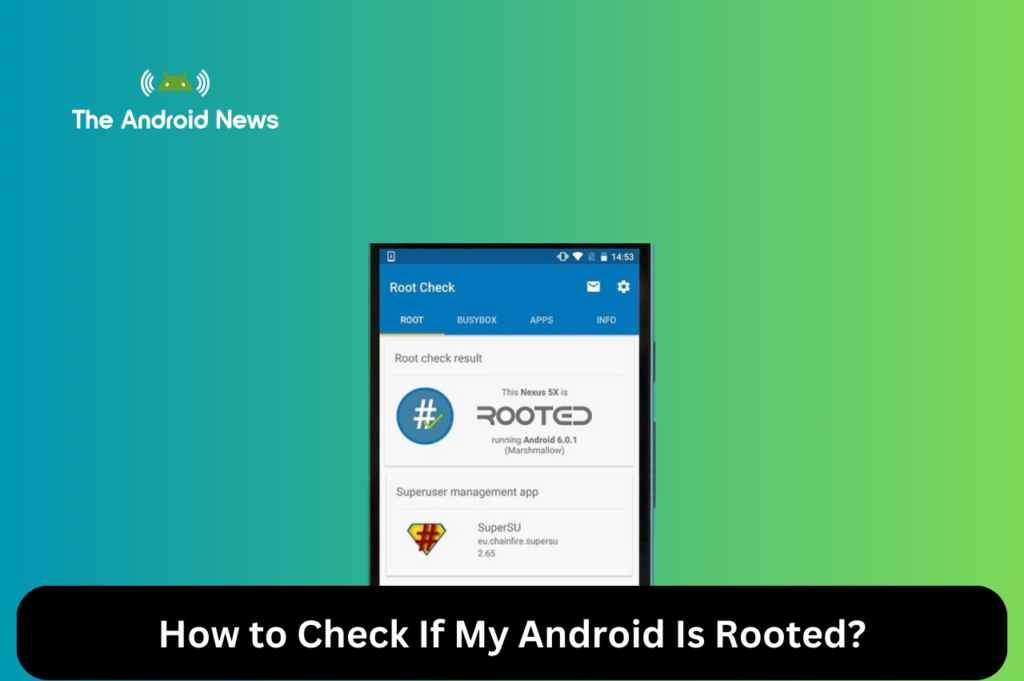
Do not proceed with installing root apps or making system changes until you have verified successful root access using one of the methods below.
After rooting, it’s essential to confirm that your device has root access. Here’s how you can check:
- Root Checker App:
2. Magisk Manager (for Magisk users):
How to Unroot Your Android Phone
You can remove root access from Android devices using the same tool that was used for rooting. Most users unroot to restore OTA updates, improve app compatibility, or return to stock settings.
Unrooting With Magisk (Method 1)
- Open the Magisk app
- Tap Uninstall Magisk
- Select Restore Images
- Reboot the device
You can optionally re-lock the bootloader after restoring full stock firmware, but incorrect re-locking may brick some devices.
Unrooting APK-Based Root Tools (Method 2)
- Open the root manager app
- Select Unroot or Remove Root
- Follow the on-screen steps
- Reboot the device
A factory reset can also remove APK-based root access, but it will erase all device data.
Helpful Tips for Rooted Devices
A rooted Android device gives you extraordinary capabilities, but keeping it stable and performing well requires a few ongoing habits.
These tips are drawn from common experiences in the Android modding community and apply regardless of which rooting method you used.
- Use a Root Management App:
2. Backup Your Device Regularly:
3. Stay Secure:
4. Avoid OTA Updates:
Bonus Tips: Root Alternatives
If you want advanced features without rooting, consider the following alternatives:
Final Thoughts on Rooting Abdroid Phones
Rooting your Android phone unlocks a wealth of possibilities, from custom ROMs to advanced app features. However, it also carries risks that you should carefully consider.
If you’re an advanced user, using Magisk and TWRP gives you full control and systemless root access. This method is perfect for complete customization and flexibility. If you prefer a simpler, no-PC solution, APK-based tools like KingoRoot provide a faster and easier alternative.
Regardless of which method you choose, always remember to back up your data beforehand. Be careful with root permissions and make sure you don’t compromise your device’s security. Rooting can be powerful, but it’s important to follow the steps closely to avoid any problems.
By following this guide, you’ll be able to safely root your device and unlock its full potential!
Will Rooting Erase My Data?
Yes, bootloader unlocking in Magisk methods usually wipes all data. APK-based root tools typically do not, but backing up your device is still recommended.
Does Rooting Improve Performance?
Not directly. Rooting only enables advanced tweaks like custom kernels, CPU tuning, and bloatware removal that may improve performance.
Rooting vs Custom ROMs: What’s the Difference?
Rooting gives administrator access to your current OS, while custom ROMs replace the entire operating system with alternatives like LineageOS.
Can Rooted Phones Receive OTA Updates?
Usually no. Rooted devices often lose automatic OTA updates and require manual firmware installation.
Does Rooting Affect Camera Quality?
No. Rooting does not change camera hardware, but some apps may stop working properly if security checks fail.