How to Use Android Developer Options: A Complete Guide
The Android Developer Options menu is one of the most powerful hidden features available on Android smartphones. Originally designed for app developers, it also includes several tools and settings that regular users can use to improve performance, customize their devices, and access advanced features.
Many Android users are unaware of these options because they are hidden by default. Once enabled, Developer Options can help speed up your phone, improve multitasking, enable debugging features, and provide greater control over system behavior. This guide explains how to use Android Developer Options safely and effectively to get the most from your device.
What Are Android Developer Options?
Android Developer Options is a hidden settings menu that provides advanced controls and diagnostic tools. Google created this section primarily for software developers who need to test applications and monitor device performance. Many of these settings are useful for everyday users as well.
The menu contains options related to animations, USB debugging, background processes, display settings, and hardware acceleration. While some settings should be left untouched unless you understand their purpose, others can improve the overall Android experience. Learning how Developer Options works allows users to unlock additional customization and performance enhancements.
How to Enable Developer Options
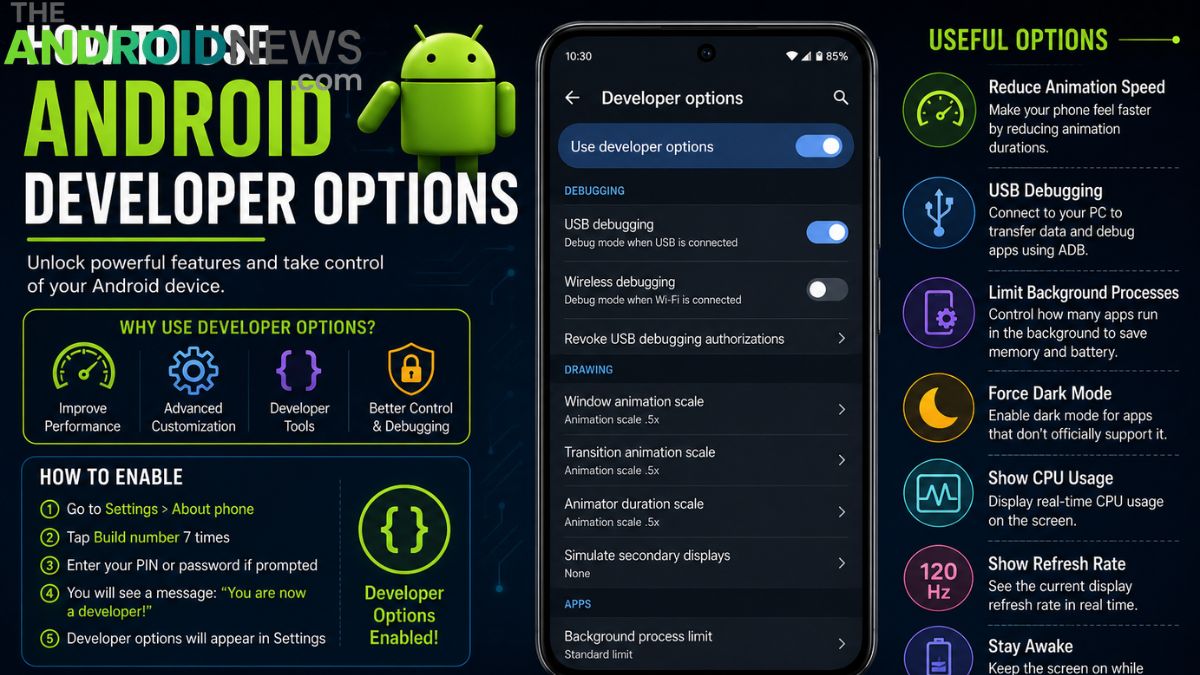
Before using Developer Options, you must first unlock the hidden menu. Open your phone’s Settings app and navigate to About Phone. Locate the Build Number entry and tap it seven times quickly. You may be asked to enter your screen lock password or PIN. After successful verification, a message will confirm that Developer Options has been enabled.
The new menu typically appears under System Settings or Additional Settings, depending on your device manufacturer. This simple process unlocks dozens of advanced Android features that would otherwise remain inaccessible to regular users.
Understanding the Developer Options Menu
After enabling Developer Options, users may feel overwhelmed by the sheer number of available settings. The menu contains categories related to debugging, networking, input controls, graphics rendering, memory usage, and application behavior. Some options are intended strictly for developers, while others offer practical benefits for everyday users.
It is important to understand the purpose of each setting before making changes. Incorrect modifications can sometimes cause unexpected behavior. Fortunately, most settings can be restored to their default values if necessary. Carefully exploring the menu helps users gain valuable control over their Android devices.
Reduce Animation Speeds
One of the most popular Developer Options settings involves reducing animation speeds. Android uses animations when opening apps, switching screens, and navigating menus. While these effects improve visual appeal, they can make the device feel slower. Inside Developer Options, users can adjust Window Animation Scale, Transition Animation Scale, and Animator Duration Scale.
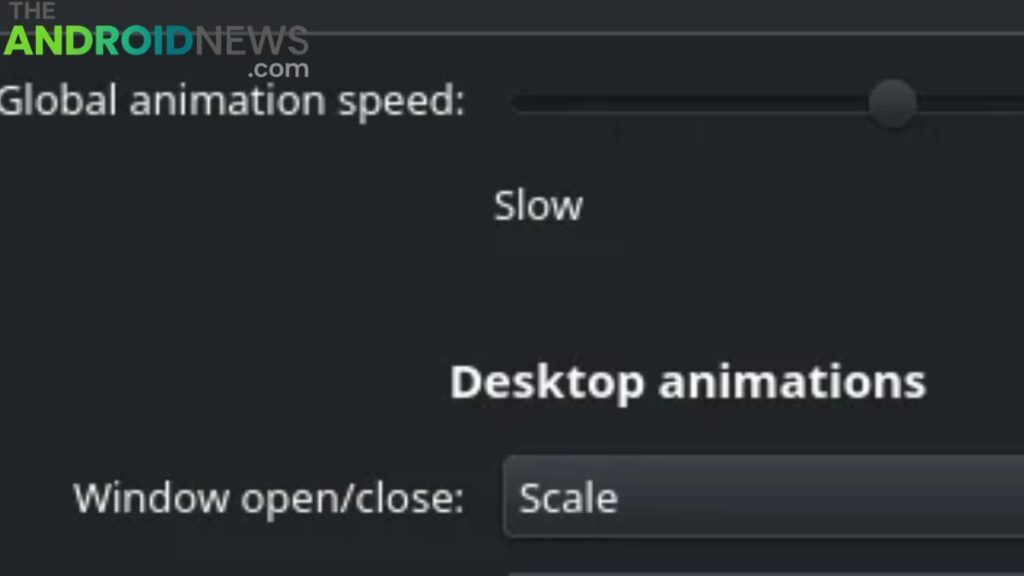
Setting these values to 0.5x or turning them off entirely makes the phone appear much faster and more responsive. This adjustment does not increase hardware performance but significantly improves perceived speed during everyday use.
Enable USB Debugging
USB Debugging is one of the most important features within Developer Options. It allows communication between your Android device and a computer using the Android Debug Bridge (ADB). Developers use USB Debugging to test applications, transfer commands, and troubleshoot issues.
Advanced users can also use ADB to customize their devices, remove unwanted apps, and perform system maintenance tasks. Although USB Debugging is extremely useful, it should only be enabled when needed. Keeping it disabled during normal use helps maintain device security and reduces the risk of unauthorized access.
Monitor Running Services
The Running Services section provides insight into which applications and processes are active in the background. This tool helps users identify apps that consume excessive memory or system resources. By reviewing running services, users can better understand how their devices are performing and determine whether certain android apps are causing slowdowns.
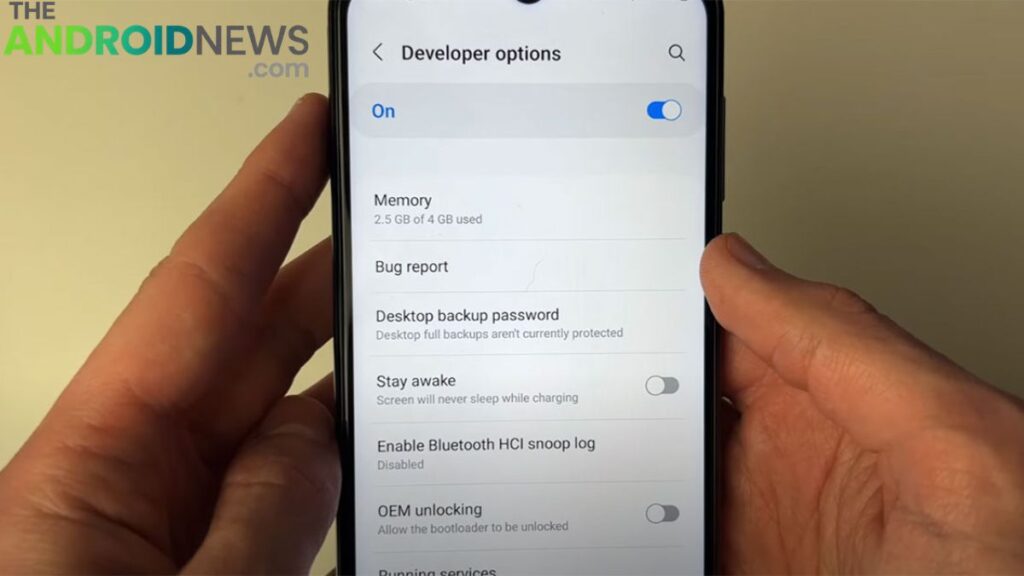
Monitoring background activity can also help improve battery life by identifying resource-intensive applications. While most Android users never check this information, it can be valuable for troubleshooting performance problems and maintaining efficient device operation over time.
Force Dark Mode
Force Dark Mode is a useful Developer Options feature that attempts to apply dark themes to apps that do not officially support them. Many users prefer dark interfaces because they reduce eye strain and may improve battery life on OLED displays. Activating Force Dark Mode can create a more consistent visual experience across applications.
Some apps may display unusual colors or formatting issues when this setting is enabled. Despite occasional compatibility problems, many users appreciate the ability to extend dark mode functionality beyond apps that natively support dark themes.
Limit Background Processes
Android allows numerous apps to run in the background simultaneously. While this improves multitasking, it can also increase memory usage and battery consumption. Developer Options includes a setting called Background Process Limit that allows users to restrict the number of active background applications. ‘
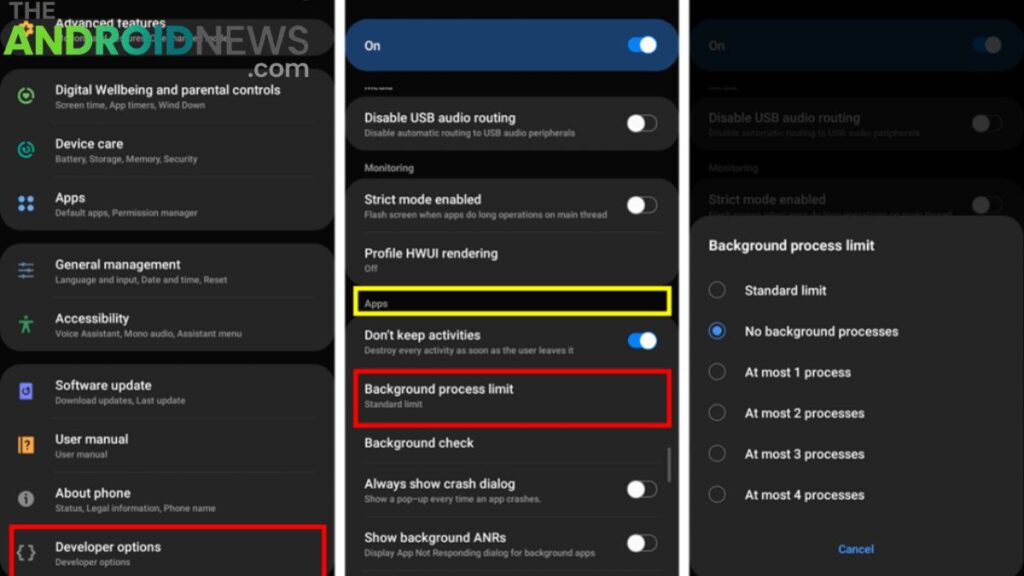
Limiting background processes can improve performance on older devices with limited RAM. Reducing the limit too aggressively may cause certain apps to close unexpectedly or refresh more frequently. Users should experiment carefully to find the right balance between performance and multitasking capabilities.
Show Refresh Rate
Modern Android smartphones often feature high-refresh-rate displays that operate at 90Hz, 120Hz, or even higher. The Show Refresh Rate option displays the current refresh rate directly on the screen. This allows users to monitor how frequently the display updates while using different apps and activities.
It is particularly useful for gamers and technology enthusiasts who want to verify that high-refresh-rate features are functioning correctly. While this setting does not improve performance, it provides valuable insight into display behavior and can help users better understand their device capabilities.
Enable Wireless Debugging
Wireless Debugging is a newer Developer Options feature that allows developers and advanced users to connect to Android Debug Bridge without a USB cable. Instead of using a physical connection, communication occurs through a local Wi-Fi network. This simplifies testing and troubleshooting while providing greater flexibility.
Wireless Debugging is especially useful for developers who frequently work with Android devices. Although most everyday users may never need this feature, it demonstrates how Developer Options continues to evolve with modern development and connectivity requirements.
Display CPU Usage
The Show CPU Usage option overlays processor activity information directly on the screen. This feature displays real-time CPU load and helps users understand how system resources are being utilized. Developers often use this tool when testing applications, but advanced users may also find it useful for diagnosing performance issues.
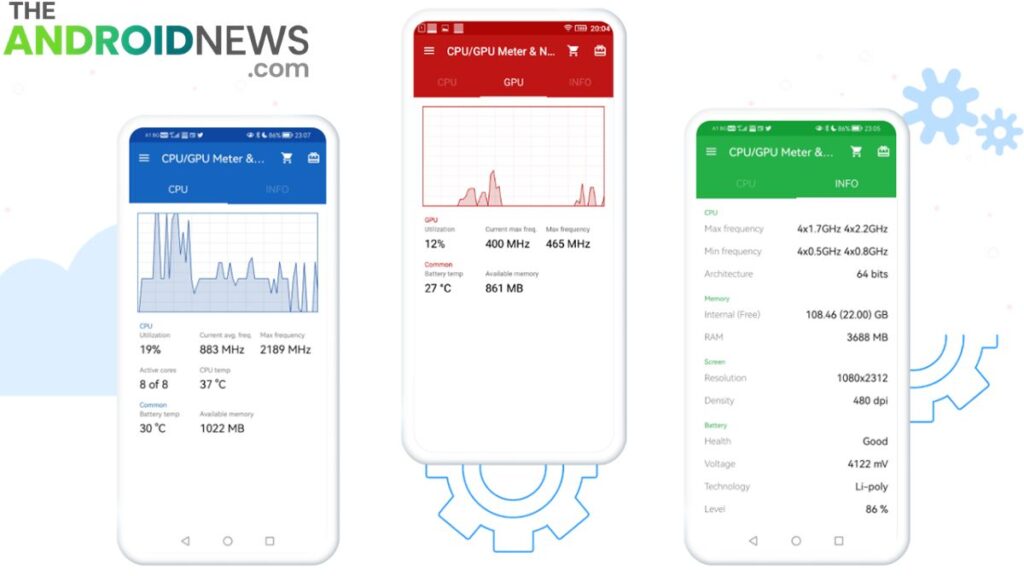
Monitoring CPU activity can reveal which apps are consuming excessive resources and affecting device responsiveness. While the constant overlay may not be practical for everyday use, it provides valuable technical information when troubleshooting performance-related concerns.
Stay Awake While Charging
Stay Awake is a simple but convenient Developer Options setting. When enabled, the phone screen remains active while connected to a charger. This feature is useful during app testing, presentations, demonstrations, or situations where users need continuous access to the display.
It eliminates the need to repeatedly unlock the device or adjust screen timeout settings. Many developers rely on this feature while testing applications, but regular users may also find it beneficial in specific scenarios. It provides additional flexibility and convenience without significantly affecting device operation.
Precautions When Using Developer Options
Although Developer Options includes many useful features, users should exercise caution when modifying settings. Some options are designed specifically for software development and may negatively impact performance or stability if misconfigured. It is generally best to change only settings that you understand fully.
If problems occur, most modifications can be reversed easily by restoring default values or disabling Developer Options entirely. Taking a careful approach ensures that users can enjoy the benefits of advanced customization without introducing unnecessary complications or system issues.
FAQs
What are Android Developer Options?
Android Developer Options are a hidden set of advanced settings that provide extra controls for debugging, performance tuning, animations, and system behavior. They are designed for developers but can also be useful for regular users.
How do I enable Android Developer Options?
To enable Developer Options, go to Settings > About Phone and tap the Build Number seven times. After entering your PIN or password, the Developer Options menu will appear in your settings.
Is it safe to use Android Developer Options?
Yes, most Developer Options settings are safe when used correctly. However, changing advanced settings without understanding their purpose may affect device performance or functionality.
Which Developer Options setting makes Android faster?
Reducing the Window Animation Scale, Transition Animation Scale, and Animator Duration Scale to 0.5x can make your phone feel faster and more responsive by shortening system animations.
Should I keep USB Debugging enabled all the time?
No, it is generally recommended to enable USB Debugging only when needed. Keeping it disabled when not in use helps improve device security and prevents unauthorized access through a computer connection.
Final Thoughts
The Android Developer Options menu offers a wide range of advanced features that can enhance performance, improve customization, and provide deeper insight into device behavior. From reducing animation speeds and enabling USB Debugging to monitoring running services and limiting background processes, these tools can significantly improve the Android experience when used correctly.
While some settings are intended primarily for developers, many provide practical benefits for everyday users. By understanding and responsibly using Developer Options, Android owners can unlock hidden capabilities and gain greater control over their smartphones than ever before.