How to Turn Off an Android Phone (All Methods Explained)
Knowing how to turn off an Android phone may seem simple, but the steps vary across devices and software versions.
On brands like Samsung Galaxy, Google Pixel, and Motorola, the shutdown process can differ slightly depending on system design and Android updates.
Normally, pressing the power button brings up shutdown options along with restart, emergency mode, or even voice assistant controls. Some devices also allow shutdown through settings or assistants like Google Assistant or Gemini.
But things become difficult when a phone is unresponsive, or the buttons stop working. In such cases, alternative methods like settings-based shutdown or hardware key combinations become necessary.
Now, let’s explore all the reliable ways you can use to turn off any Android phone, including troubleshooting for tougher situations.
Key Takeaways
- Turning off an Android phone is simple, but the exact steps can vary depending on the device brand and Android version.
- The most common method is using the Power button, which brings up the power menu with options like Power Off and Restart.
- If the Power button is not working, you can use Quick Settings, the Settings menu, or voice assistants like Google Assistant or Bixby.
- For unresponsive or frozen phones, a force restart (Power + Volume button hold) is often required.
- Knowing multiple shutdown methods helps you handle different situations, especially when your phone is lagging, stuck, or updated.
- Restarting is not the same as shutting down—restart refreshes the system, while shutdown completely powers off the device.
- Using the correct method can help protect data, avoid system glitches, and improve overall device performance.
Table of Contents
Step-by-Step Methods to Turn Off an Android Phone (Basic Ones)
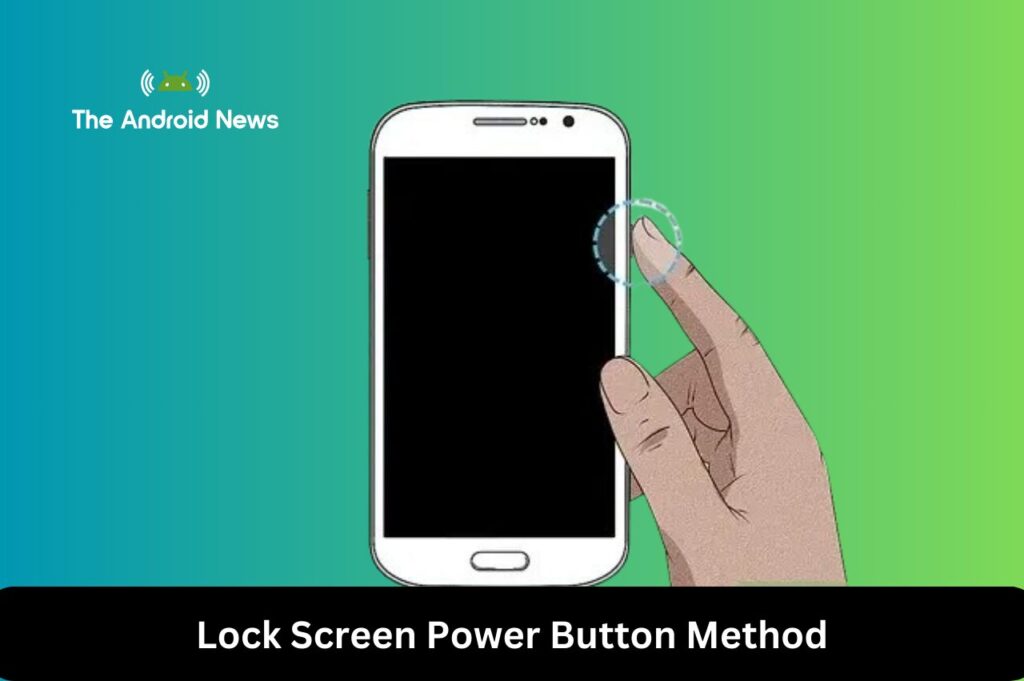
1. Lock Screen Power Button Method
The most common way to turn off an Android phone is by using the physical power button. This method works on most devices and is usually the fastest option.
Steps:
- The button combination varies by brand and model. For example, newer Samsung Galaxy phones use Side + Volume Down, while Pixel 6 and later use Power + Volume Up
- Wait for the power menu to appear
- Tap “Power Off”
- Confirm if prompted
Variations: The method can vary slightly depending on the manufacturer. For example, some older models only require holding the Power button, while Samsung devices may show additional menu options like “Restart” and “Emergency Mode.”
You know what? This is also the quickest solution if you’re searching on Google for how to turn off my phone, how to turn phone off, or how to power off my phone.
How to fix the Power Button (so it works without the Volume key)?
If you want to hold just the Power button to shut down your phone like the old days, change your system settings:
- Samsung Galaxy: Go to Settings → Advanced Features → Side button. Under Press and hold, switch it from Wake Bixby to Power off menu.
- Google Pixel: Go to Settings → System → Gestures. Tap Press and hold power button and change it from Digital Assistant to Power menu.
2. Shut Off from Settings
If the power button is not working or is hard to use, many phones can be turned off through Quick Settings.
Steps:
- Swipe down twice from the top of the screen to open Quick Settings
- Tap the Power icon (usually at the top right or bottom right)
- Tap “Power Off” to shut down your phone
- Confirm the action if required
This method is useful when physical buttons are unresponsive.
3. Using Google Assistant or Bixby
You can also turn off your Android phone using voice commands if your assistant is enabled.
Steps:
- Activate the Assistant: Say “Hey Google, turn off my phone.” or “Hi Bixby.”
- Command to shut down: “OK Google, turn off my phone” or “Google, power off my phone.”
- Follow Any Prompts: Confirm when prompted
This method is convenient when you want a hands-free option.
Tip:
Ensure that your voice assistant is properly configured to recognize these commands for a seamless experience.
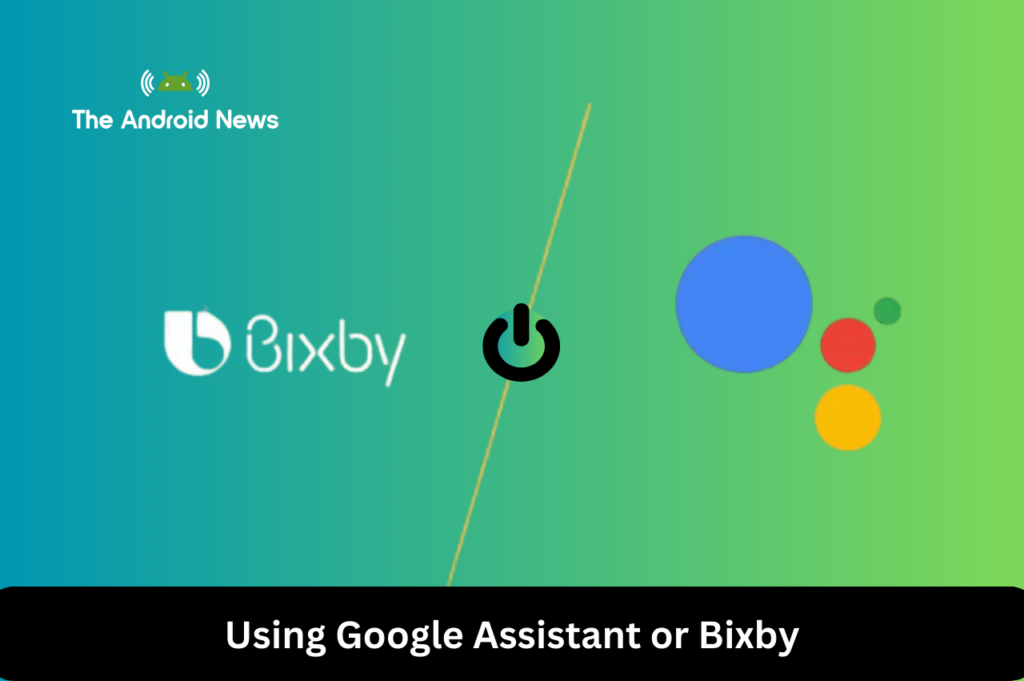
How to Turn Off an Android Phone Without a Power Button?
If your power button is not working or is difficult to use, you can still turn off your Android phone using built-in software options.
Use Quick Settings Menu
- Swipe down twice from the top of the screen
- Tap the Power icon
- Select “Power Off”
This is the easiest alternative when the hardware button is not working. If your power button isn’t working, you can still turn off your device or power off the device using Android’s built-in software controls.
Use Accessibility Menu Shortcut
If your device supports it, you can use the on-screen accessibility shortcuts:
- Open Settings
- Go to Accessibility
- Tap Accessibility Menu and turn it on
- Tap the green Accessibility shortcut icon on your screen
- Select Power options
- Select Power Off
How to Force Restart an Android Phone?
If your device freezes, you may need to force power off your Android phone, or you can say perform a force restart before restarting it.
Power + Volume Down Combination
- Press and hold the Power Button and Volume Down Button simultaneously.
- Keep holding both buttons for 10–15 seconds.
- The device will cut the power and force a clean system restart automatically.
- This hard-reset method works on many Android phones, but the exact key combination varies by brand and model.
Warning: Avoid holding Power + Volume Up while your phone is freezing. On modern devices like Pixels, Samsungs, and Motorolas, this specific combination forces the phone into a scary text menu called “Recovery Mode” or “Fastboot Mode,” which can confuse everyday users.
Plug in and Force Restart
- Connect your phone to a charger if it remains unresponsive
- Repeat the Power + Volume Down combination while the device is plugged in
Step-by-Step Methods to Turn Off Different Android Phone Brands
Here are the Step-by-Step Methods to Turn Off Different Android Phone Brands, so you can easily follow the exact process based on your device model.
How to Turn Off a Samsung Galaxy Phone?
Samsung Galaxy phones may use a slightly different power menu depending on the One UI version and device model.
Using Hardware Buttons
- To turn off a modern Samsung Galaxy phone, press and hold the Power (Side) Button and the Volume Down Button simultaneously for a few seconds until the power menu appears.
- Do not let go immediately when the screen flashes (which takes a screenshot); keep holding both buttons for 2 to 3 seconds.
- Tap “Power Off”
- Confirm if prompted. This will shut down the Samsung phone.
Using Quick Settings
- Swipe down twice from the top of the screen to open the Quick Settings panel
- Tap the Power icon located at the top right of the screen
- Select “Power Off”
- Confirm the action to shut down
How to Turn Off a Motorola Phone?
Newer Motorola devices link the standalone power button directly to Google Assistant or Gemini.
Using Hardware Buttons
- Press and hold the Power Button and Volume Up Button together
- Wait for the standard power options overlay to appear.
- Tap “Power Off” to cleanly power down the phone.
How to Turn Off a Google Pixel Phone?
Google Pixel devices may integrate power controls with Google Assistant on newer Android versions.
Using Hardware Buttons
- Press and hold the Power Button and Volume Up Button together
- Wait for the power menu to appear
- Tap “Power Off”
- Confirm if prompted
Note:
Turning off a Motorola or Google Pixel phone using Quick Settings follows the same basic steps as a Samsung device. However, Motorola and Pixel may display the software power icon at the bottom of the screen, while Samsung displays it at the top right.
Common Problems When Turning Off an Android Phone
Sometimes an Android phone may not shut down normally because of button issues, system lag, or accidental menu selections.
Here are some of the common problems that can help avoid confusion during the shutdown process:
1. Accidentally Opening Emergency Mode
Holding the power button too long or pressing the wrong option may activate Emergency Mode instead of shutting down the phone. Always select “Power Off” carefully from the power menu.
2. Confusing Restart With Power Off
Restarting and shutting down are different functions. A restart refreshes the Android system and turns the phone back on automatically, while powering off completely shuts down the device.
3. Android Phone Not Responding
If your phone becomes frozen or does not respond to normal restart commands:
- Press and hold the Power Button and Volume Down Button together for 10–15 seconds to force a restart.
- Try a hardware key combination if the screen remains unresponsive
- Charge the phone for a few minutes if the battery is fully drained
Tips Before Turning Off an Android Phone
Before shutting down your Android phone, a few simple steps can help avoid data loss and improve device performance.
1. Close Running Apps
Closing unnecessary apps before powering off helps reduce background activity and can improve overall system performance.
2. Save Important Data
Make sure any unsaved files, messages, or ongoing work are saved before shutting down the device, especially when using banking, document, or password management apps.
3. Restart if the Phone Is Slow
If your Android phone is lagging or temporarily unresponsive, restarting it may fix minor system issues more effectively than a full shutdown.
People also ask
1. How do I turn off my Android phone quickly?
You can quickly open the power menu on modern Google Pixel and Motorola phones by holding Power + Volume Up. For modern Samsung Galaxy phones, press and hold Power + Volume Down.
2. How do I turn off a frozen Android phone?
For a frozen phone, press and hold the Power + Volume Down buttons simultaneously for at least 15 full seconds. The system will cut power immediately and safely reboot the Android operating system.
3. How do I turn off my Android phone without touching the screen?
You can easily bring up the shutdown menu or power down by using physical hardware buttons (the Power + Volume Up combination) or by giving hands-free voice assistant commands.
4. Why is my Android phone not turning off?
Common reasons include:
System freeze or lag
Button malfunction
Background apps blocking shutdown
Software glitch after update
In such cases, try a force restart.
5. What is the difference between a restart and a shutdown?
Restart: Turns the phone off and back on automatically
Shut down: Completely powers off the device
Use restart for fixing minor issues and shutdown for saving battery or turning off completely.
6. Can I turn off my phone using Google Assistant?
Yes. If Google Assistant is enabled, you can say, “Hey Google, turn off my phone.” Depending on your Android version, you’ll be asked to confirm the shutdown.
7. How do I power off my phone without using the power button?
Open Quick Settings and tap the Power icon, or use the Accessibility Menu if it’s enabled. These methods let you power off your phone even if the hardware button isn’t working.
8. How do I turn off my phone if the screen is completely broken or dead?
Forcing a hard reset with buttons will just loop the phone back on. To turn it completely off and keep it off when the display is shattered, you can plug a normal computer mouse into your phone using a USB-OTG adapter to click the on-screen power menu, trigger your Voice Assistant, or leave the phone unplugged and let the battery drain to 0%.
Final Thoughts on Turning Off an Android Phone
Turning off an Android phone is a simple process, but the exact steps can vary depending on the device model and Android version.
Whether you are using the power button, settings menu, voice assistant, or dealing with a frozen device, knowing multiple shutdown methods ensures you can always switch off your phone when needed.
In most cases, the standard power button method is the fastest, while alternatives like Quick Settings or force restart become useful when the device is unresponsive. By understanding these options, you can handle any situation more efficiently and keep your device running smoothly over time.