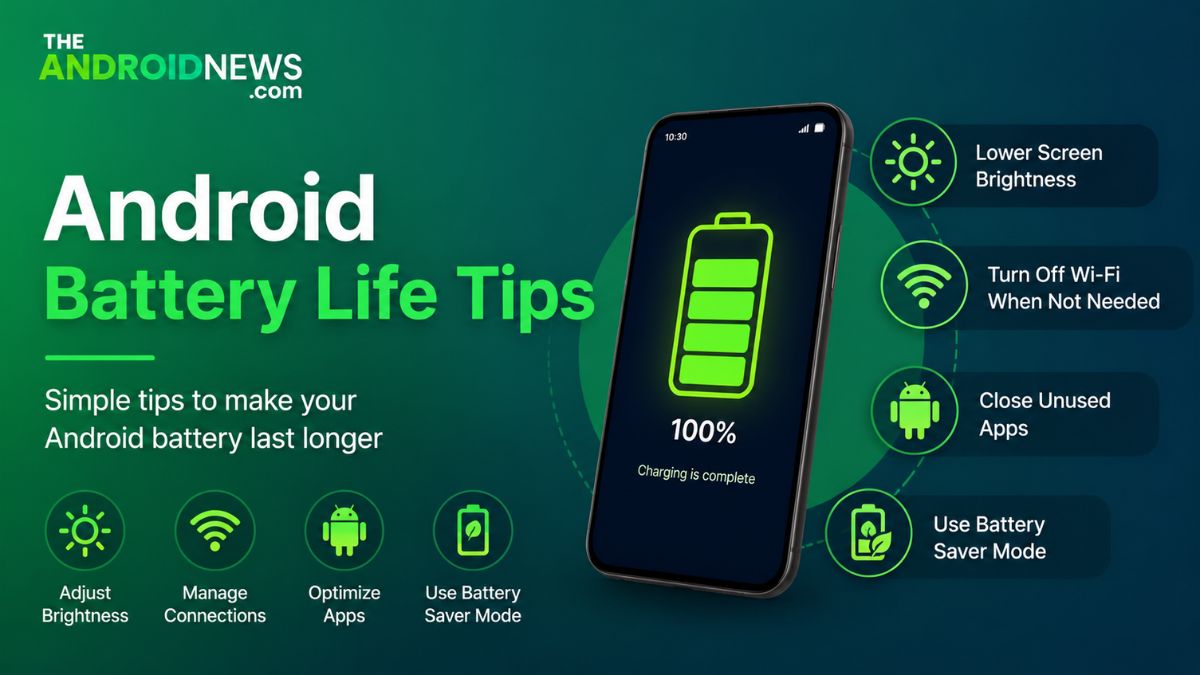
Android Battery Life Tips: Make It Last Longer
In my quest for longer battery life, I’ve uncovered some incredible Android battery life tips that transformed how I interact with my device. Ensuring my phone lasts throughout the day is not just convenient; it can be crucial in today’s fast-paced, always-connected world. With these easy-to-follow strategies, you’ll keep your phone powered longer, ensuring it keeps up with your busy lifestyle.
In this article, we’ll explore essential Android Battery Life Tips that can extend the longevity of your device. By implementing these strategies, you can enjoy your smartphone without the constant worry of finding an outlet. This offers practical Android battery life tips designed to help you maximize your device’s performance and efficiency.
Why Is My Phone Battery Draining so Fast?
Many Android users grapple with this frustrating issue, unaware that background processes and app activity could be the main culprits. Apps that continuously run location services or sync data without your consent can drain your battery speed than you’d think. The reasons are as under:
Screen Brightness
Many users unknowingly keep their displays at maximum brightness or fail to enable auto-brightness, which adjusts the screen according to ambient light. Reducing brightness, especially in low-light conditions, can significantly prolong Android battery life, giving your device a fighting chance at lasting through the day.
Background apps
Phone battery becomes weaker due to background apps that continue to run, consuming resources and power even when you’re not actively using them. Regularly reviewing app permissions and employing battery saver modes can help reduce this load.
Connectivity
Connectivity options, like Bluetooth and Wi-Fi, also play a role; leaving them on when not in use not only drains the battery but leads to unnecessary data searches as your phone seeks out connections.
Location services
Location services can be a silent power drainer. Several apps continuously access your GPS, meaning that tweaking location settings to “While Using the App” can conserve battery life while still providing essential services.
How can I save battery life?
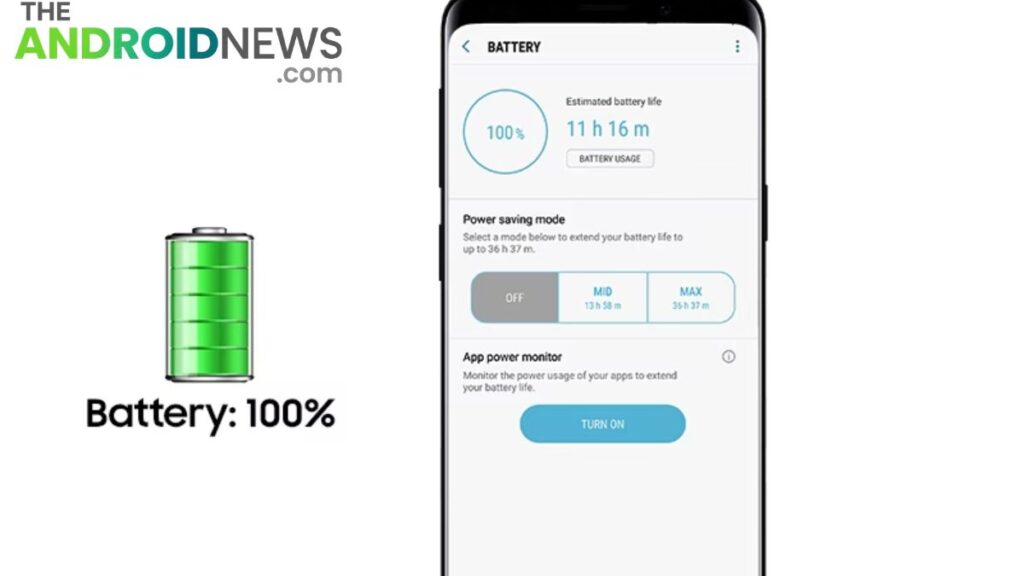
Maximizing your Android battery life goes beyond just dimming the screen or turning off Bluetooth. Consider exploring the Battery Saver Mode, which intelligently restricts background activities and optimizes performance when your battery is running low. The details are as under:
Dim the screen
Dimming your screen is the simplest yet most effective Android battery life tips. A bright display consumes a significant amount of power, so reducing brightness can extend your phone’s lifespan throughout the day.
Enable adaptive brightness
Enable adaptive brightness, which adjusts your screen’s brightness based on the surrounding light. This not only conserves battery but also enhances your viewing experience, ensuring comfort in various environments.
Reduce screen timeout
Screen timeout settings can also play a crucial role in preserving battery life. Reducing the duration before your screen turns off when idle will save energy, especially during long calls or when you forget to manually lock your device.
Turn off keyboard sounds/vibrations
Turning off keyboard sounds and vibrations can further boost battery efficiency. These features may seem minor, but collectively, they reduce unnecessary power draws, making a noticeable difference.
Manage notifications
Managing notifications thoughtfully can also help limit only the most essential alerts to keep your device from continuously waking up to check for you updates, ultimately ensuring your Android device stays powered for longer.
Android Battery-Saving Techniques
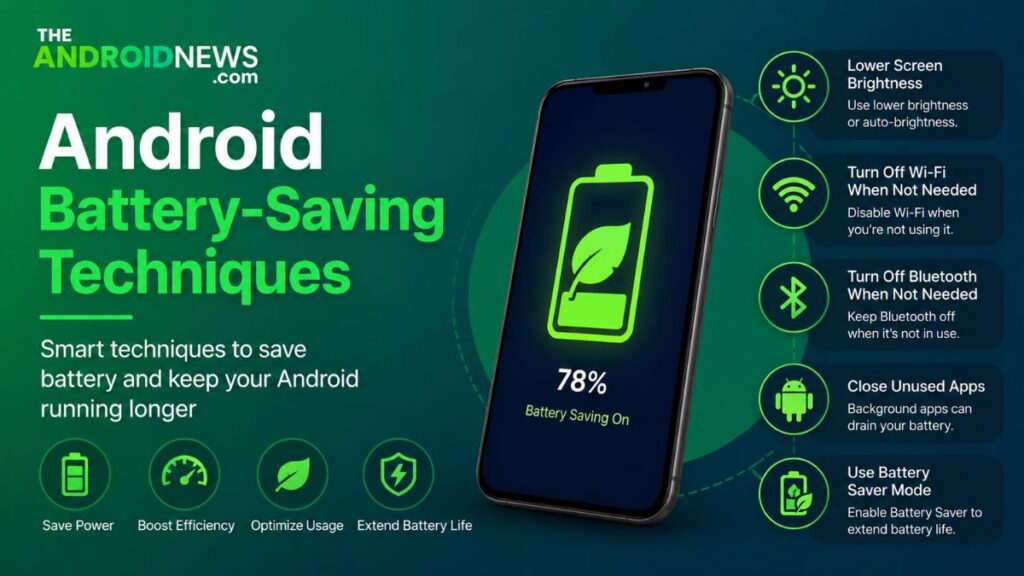
Android battery life tips involve the power of adaptive brightness. Instead of manually adjusting brightness settings, try enabling adaptive brightness, which dynamically adjusts based on your surroundings and usage patterns. This not only conserves energy but also enhances your viewing experience in varied lighting conditions. The details are as follows:
Restrict background app activity
Restricting background app activity can significantly extend your Android device’s battery life. Many apps consume energy even when you’re not using them, silently syncing and sending notifications. You can prevent unnecessary power drain, allowing your device to focus on what you need at the moment.
Enable battery saver mode
Enabling battery saver mode transforms your device into a power-efficient machine, reducing strain by limiting performance and background activities.
Utilize dark theme (if applicable)
Dark pixels use significantly less power than light ones, and this aesthetic change can lend a sleek look while optimizing battery life. It can save battery because individual pixels are turned off to display black.
Delete unused accounts
Consider deleting unused accounts and services linked to your device; they can cause hidden battery drain through syncing and updates.
How can I maximize battery life?
To maximize your Android battery life, consider adjusting your screen settings first. Lowering the brightness or enabling adaptive brightness can significantly reduce power consumption. The details are as under:
Lower Screen Brightness
Keeping your screen brightness low uses less battery power. You can also turn on auto-brightness so the screen adjusts itself. This helps your battery last longer during the day.
Close Unused Apps
Android apps running in the background can drain your battery. Close apps that you are not using. This reduces battery usage and improves performance.
Turn Off Wi-Fi and Bluetooth When Not Needed
Wi-Fi and Bluetooth use power while searching for connections. Turn them off when you do not need them. This can help save battery life.
Use Battery Saver Mode
Most devices have a battery saver mode. It reduces background activity and limits some features. This helps your battery last much longer.
Troubleshooting Persistent Battery Issues
If your Android device’s battery seems to drain unreasonably fast, it’s essential to identify any rogue applications or settings that may be the culprits. Start by navigating to the battery settings and reviewing which apps consume the most power. The details are as under:
Check Battery Health
A damaged or old battery may lose power quickly. Check your device’s battery health in the settings. If the battery health is low, it may need replacement. This can improve battery performance.
Update Your Device
Software updates often fix battery-related problems. Make sure your device is running the latest version. Updates can improve power management. They may also fix bugs that drain the battery.
Find Power-Hungry Apps
Some apps use more battery than others. Check battery usage in your device settings. Uninstall or limit apps that consume too much power. This can help your battery last longer.
Restart the Device
A simple restart can solve many battery issues. It closes unnecessary background processes. Restart your device regularly to keep it running smoothly. This may reduce unusual battery drain.
Conclusion
Android Battery Life Tips are essential for maintaining your device’s performance and longevity. By implementing simple strategies like managing app usage, adjusting screen brightness, and utilizing battery saver modes, you can significantly extend your phone’s uptime.
FAQs
How to make the battery last longer on Android?
Start by adjusting your screen brightness and timeout settings. Reducing brightness or enabling adaptive brightness can significantly save battery life. Consider shortening the screen timeout duration, which limits the time your display stays on when not in use. These simple changes can lead to noticeable improvements in battery longevity.
How to make 20% battery last 2 hours?
To make your 20% battery last two hours, start by reducing your device’s power consumption. Lower the screen brightness or switch to battery saver mode, which can significantly extend battery life by limiting background activity and reducing resource usage. Closing any unused apps and disabling non-essential features like Bluetooth, Wi-Fi, and location services can help conserve battery.
What is the 30 90 rule for battery?
The rule suggests that you should aim to keep your battery level between 30% and 90%. Charging your device when it hits around 30% can help avoid deep discharges, while unplugging before it hits 100% prevents overcharging, which can lead to heat buildup and degradation over time.
Is 76% a good battery life?
A battery life of 76% can be considered decent, depending on the context of your device and how you use it. For smartphones and laptops, a battery percentage above 75% generally indicates that the device still has a solid amount of operating time left.
Is charging to 95% better than 100%?
Yes, charging your device to 95% instead of 100% can be beneficial for the longevity of the battery. Lithium-ion batteries, which are commonly used in smartphones and laptops, experience less stress when not charged to their full capacity. Charging to 100% can lead to greater wear over time due to the chemical reactions that occur at the highest voltage, which can shorten the battery’s lifespan.