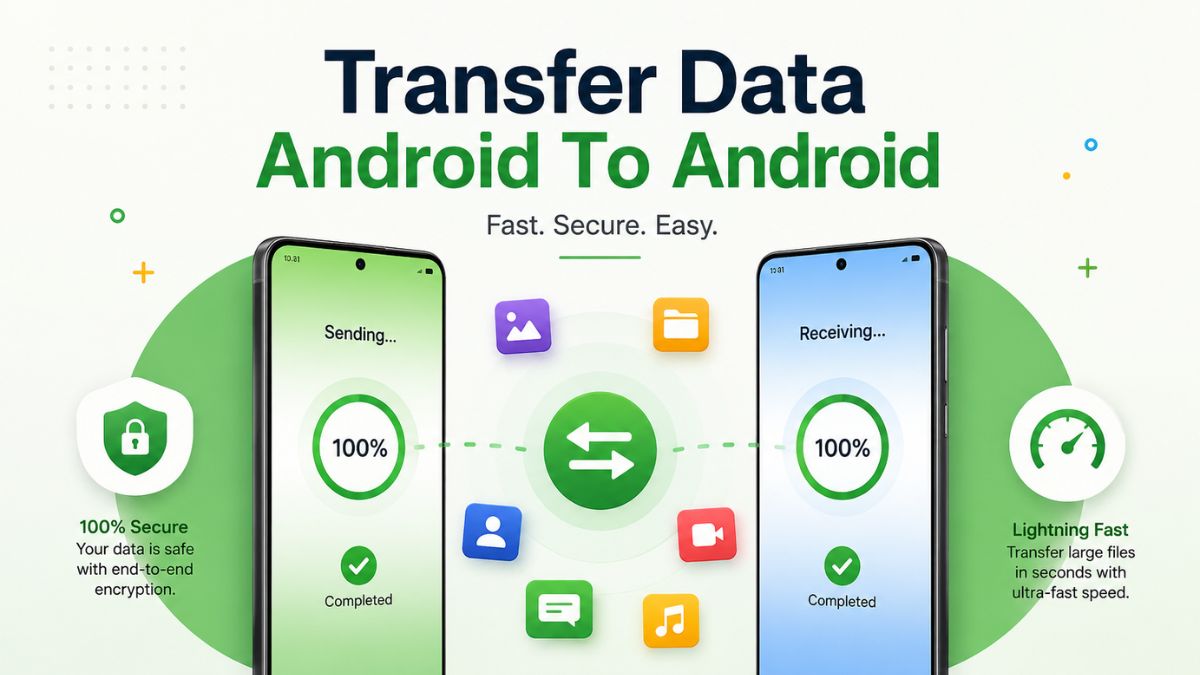
Transfer Data Android To Android: How to Transfer Data From Android To Android
Buying a new Android smartphone is exciting, but many users worry about losing their important files during the switch. Android devices now offer several easy and secure ways to move your data from one phone to another. You can transfer contacts, photos, videos, apps, messages, documents, and settings in just a few simple steps. Modern smartphones include built-in tools that make the process faster and safer than ever before.
Whether you are upgrading to a flagship device or replacing an old phone, learning how to transfer your data correctly can save time and prevent data loss. This guide explains multiple methods to transfer data Android to Android, including wireless transfer, cloud backup, USB cable transfer, and manufacturer tools available in 2026.
Understanding Android Data Migration
Android data migration refers to the process of moving personal information and files from one Android device to another. This process ensures that your apps, contacts, photos, and settings remain available after switching devices. Data migration has become much easier because Android now supports automatic backup and synchronization through Google services.
Many users prefer full data migration because it helps them continue using their new phone without reinstalling anroid apps or manually copying files. Modern Android systems can even transfer wallpapers, app layouts, call logs, and saved Wi-Fi passwords. Proper migration helps users save time while keeping their digital information secure and organized during the transition process.
Things to Do Before Starting the Transfer
Before moving data to a new Android phone, there are several important preparation steps to follow. Fully charge both devices to avoid interruptions during the transfer process. Low battery levels can cause failed transfers or incomplete file copying.
You should also connect both phones to a stable Wi-Fi network because many transfer methods rely on internet access. Updating the devices to the latest Android version improves compatibility and security. Cleaning unnecessary files, duplicate photos, and unused apps from the old phone can speed up the transfer. It is also recommended to back up important files separately in case unexpected issues occur during migration.
Restoring Data Through Google Account
Using a Google account is one of the simplest ways to restore your data on a new Android phone. Most Android devices automatically back up information like contacts, app data, call history, and settings to Google servers. On your old phone, open the backup settings and ensure all backup options are enabled. When turning on the new device for the first time, sign in using the same Google account linked to your previous phone.
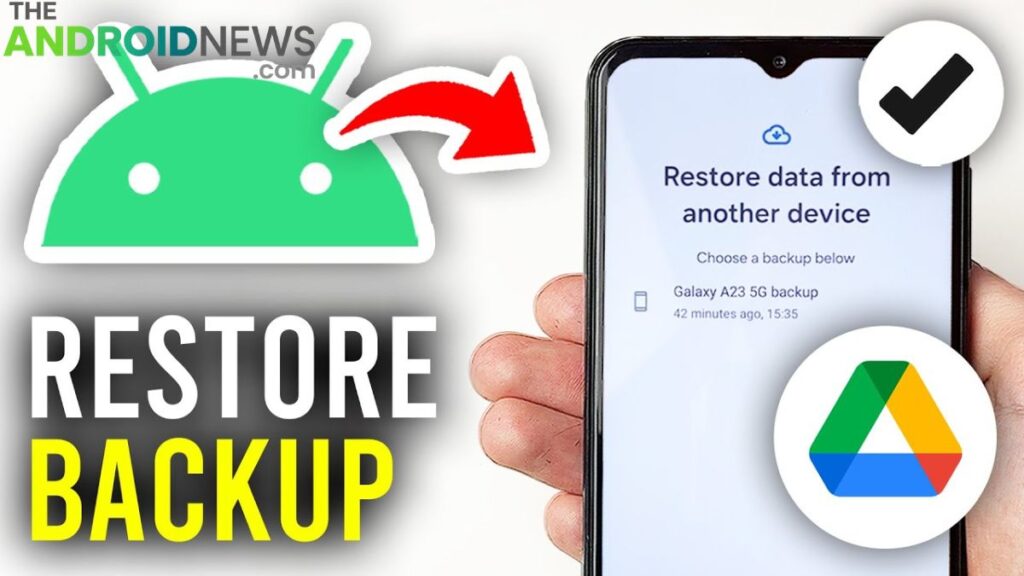
Android will automatically detect available backups and ask if you want to restore your information. After confirmation, apps, contacts, settings, and other data will begin downloading to the new device. This method is convenient because it works wirelessly and does not require extra equipment. It also keeps your information protected through cloud storage.
Phone-to-Phone Wireless Transfer
Wireless phone-to-phone transfer is another fast and easy way to move data between Android devices. Many modern smartphones include direct wireless transfer features that use Wi-Fi Direct technology for high-speed file sharing.
During setup, the new Android device may ask whether you want to copy data from another phone. Selecting the wireless option will generate a connection request between the devices. Once paired, you can choose the data categories you want to move, including photos, videos, apps, and messages.
Wireless transfer is convenient because it eliminates cable clutter and allows quick setup. Transfer speed may vary depending on file size and network strength. Keeping both devices close together improves connection stability during the process.
Using Quick Share and Nearby Share
Quick Share and Nearby Share are popular Android features used for transferring files between devices. These tools work similarly to Apple AirDrop and allow users to share files wirelessly without additional apps.
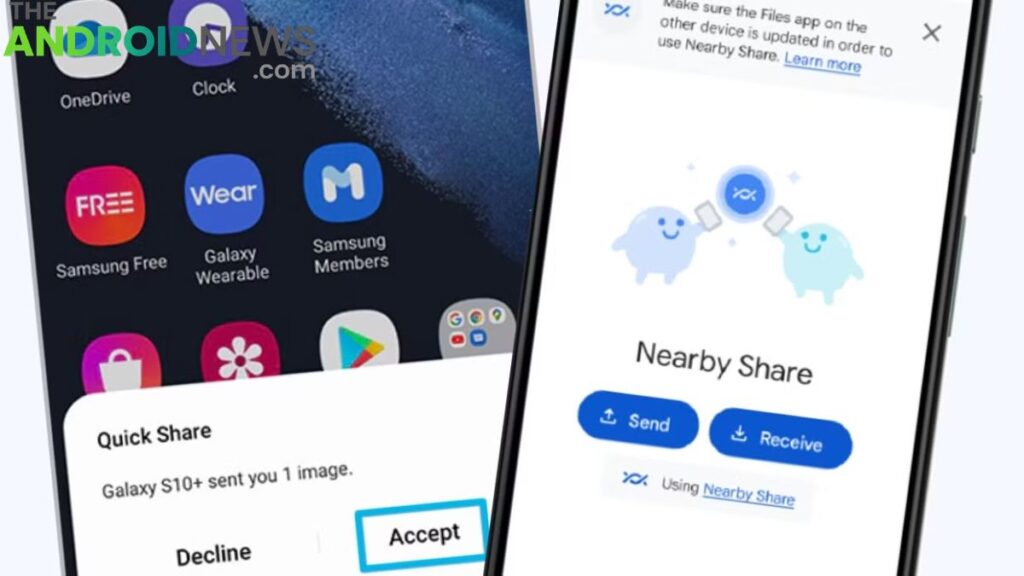
To use Quick Share, enable Bluetooth and Wi-Fi on both phones. Open the file you want to transfer, tap the Share button, and choose Quick Share or Nearby Share. The nearby Android device will appear automatically if visibility is enabled.
These tools are ideal for transferring photos, videos, documents, and small apps quickly. They are especially useful when users only need to move selected files rather than perform a full device migration.
Moving Photos and Media Files
Media files usually occupy the most storage space on smartphones, so transferring them properly is important. Google Photos is one of the best tools for safely moving photos and videos to a new device.
Enable backup and synchronization on the old phone, and all media files will upload to cloud storage automatically. After signing in on the new device using the same Google account, your photos and videos will reappear inside Google Photos.
Another option is using a computer or a USB flash drive to copy media manually. Wireless transfer apps are also effective for smaller media collections. Organizing albums before transfer can make the migration process cleaner and faster.
Copying Contacts and Calendars
Contacts and calendars are essential parts of daily smartphone use. Most Android phones sync this information automatically through Google accounts. To confirm synchronization, open your account settings and verify that contact syncing is enabled.
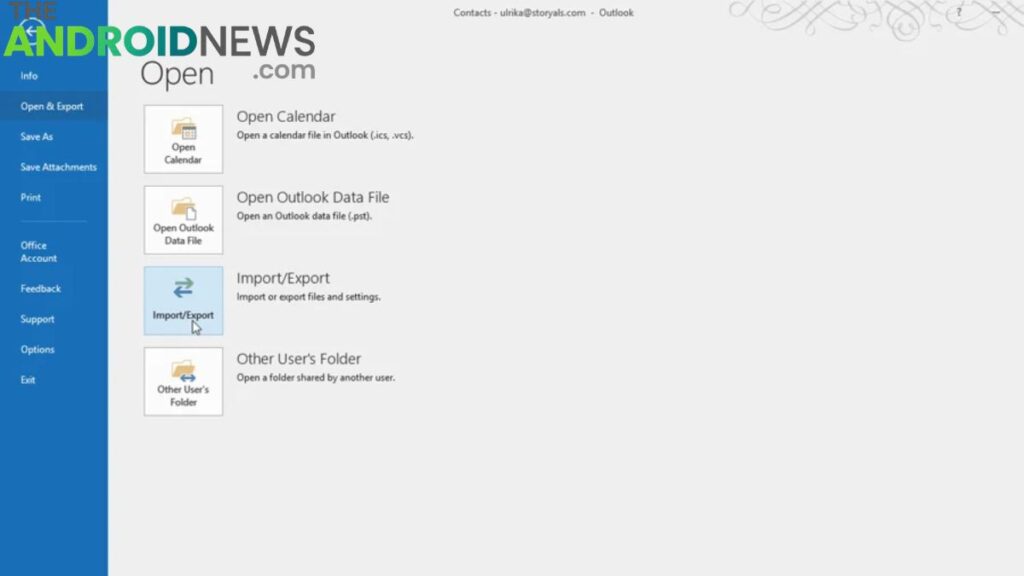
Once you log into the same account on the new phone, your contacts and calendar events will appear automatically. This process ensures that phone numbers, birthdays, reminders, and appointments remain accessible after switching devices.
Users who prefer offline transfers can export contacts as VCF files and import them manually on the new device. Cloud synchronization remains the easiest and safest method for most users.
App Transfer and Installation
Modern Android systems make reinstalling apps very simple. During device setup, Android automatically displays apps linked to your Google account and downloads them to the new phone. Many apps also restore saved settings and preferences through cloud backup systems.
Some apps, especially banking and security apps, require manual login again for safety reasons. Games and productivity apps may restore progress if cloud sync is enabled. Users should also check for app updates after installation to ensure compatibility with the new Android version. Removing unused apps before transfer can reduce storage usage and improve phone performance after migration.
Transferring Files Using External Storage
External storage devices such as USB drives and microSD cards provide another reliable way to transfer Android data. Many Android phones support OTG adapters that allow direct connection of flash drives.
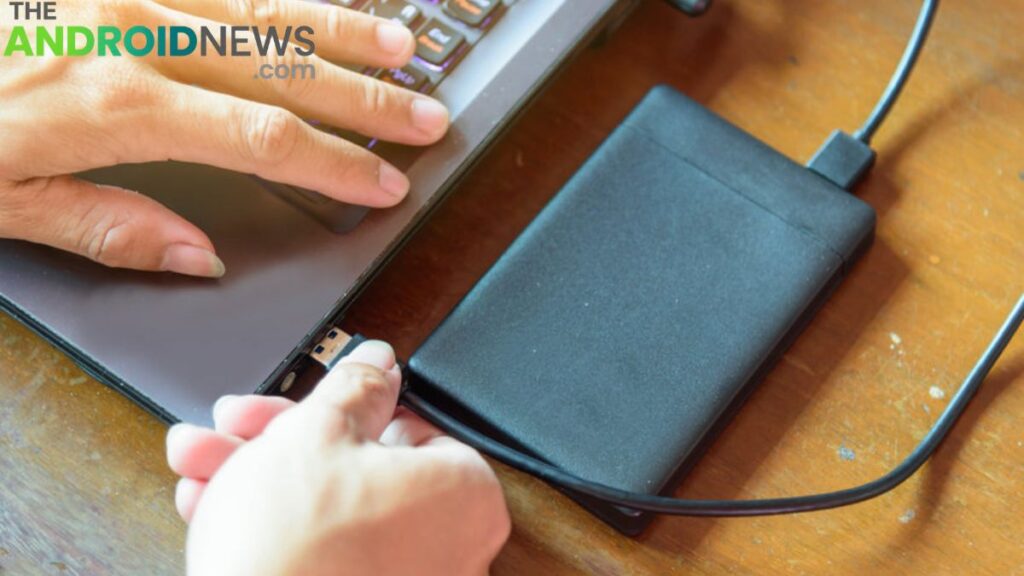
Users can copy photos, documents, videos, and music files from the old device to external storage, then move them to the new phone. This method is useful when internet access is unavailable or when transferring very large files. External storage transfers are usually fast and secure. Users should safely eject storage devices after file copying to prevent corruption or data loss.
Using Brand-Specific Transfer Applications
Most smartphone manufacturers now provide official migration apps to simplify device switching. Examples include Samsung Smart Switch, Xiaomi Mi Mover, and OnePlus Clone Phone. These tools are optimized for specific brands and often transfer more data than standard Android methods.
Brand-specific apps can move wallpapers, home screen layouts, settings, messages, contacts, and installed apps. The transfer process is guided with clear instructions, making it beginner-friendly. Many of these apps also support wireless high-speed transfers. Using official manufacturer apps is often recommended because they provide better compatibility, security, and transfer reliability for supported devices.
Common Android Transfer Issues
While Android data transfer is generally simple, users may still face occasional problems. Slow transfer speed is one common issue, usually caused by weak Wi-Fi signals or outdated software. Restarting both devices often solves temporary connection problems.
Incomplete data restoration can happen if cloud backup was disabled on the old phone. Checking storage availability on the new device is also important because insufficient storage may interrupt transfers.
Cable-based transfers sometimes fail because of damaged or low-quality USB cables. Using original accessories improves reliability. Keeping apps and system software up to date can also prevent compatibility issues during migration.
Security Tips During Data Transfer
Protecting personal information during transfer is extremely important. Always use trusted transfer methods and avoid suspicious third-party applications that request unnecessary permissions. Secure Wi-Fi networks are safer than public internet connections when transferring sensitive files.
Users should also remove personal accounts and factory reset the old phone only after confirming that all important data has been copied successfully. Enabling two-factor authentication on important accounts adds extra protection during the transition process. Backing up files separately before transfer provides an additional layer of security against accidental data loss.
Android Data Transfer Technology in 2026
Android data migration technology continues to improve in 2026. New devices now support ultra-fast wireless transfer speeds and smarter cloud synchronization systems. Artificial intelligence is also helping automate setup and personalize transferred content based on user behavior.
Many smartphones now include automatic app optimization and intelligent file organization after migration. Cross-device synchronization between Android phones, tablets, and laptops is becoming more seamless. Wireless transfer standards are also improving, making cable-free migration faster and more stable than before. Future Android systems are expected to offer even easier setup experiences with near-instant device cloning and advanced backup recovery features.
Final Words
Learning how to move data from one Android phone to another is essential when upgrading to a new smartphone. Android provides several easy and secure transfer methods, including Google backup, wireless sharing, USB cable transfer, cloud storage, and manufacturer-specific apps. Each method offers unique advantages depending on the amount and type of data being moved.
Proper preparation, a strong internet connection, and trusted tools help ensure a smooth transfer process without losing important information. As Android technology continues to evolve in 2026, switching to a new phone is becoming faster, smarter, and more convenient for users around the world.
FAQs About How to Transfer Data Android to Android
What is the easiest way to transfer data from Android to Android?
The easiest method is to use your Google account backup. Sign in with the same Google account on the new phone, and Android will restore contacts, apps, settings, and other backed-up data automatically.
Can I transfer data without using the internet?
Yes, you can transfer data using a USB cable, OTG adapter, microSD card, or wireless direct transfer apps that work offline between devices.
Will my apps transfer to the new Android phone?
Yes, most apps linked to your Google account can reinstall automatically during setup. Some apps may require you to log in again for security reasons.
How long does Android data transfer take?
The transfer time depends on the amount of data being moved and the transfer method used. Small transfers may take a few minutes, while large photo and video collections can take over an hour.
Is wireless transfer safe for personal files?
Yes, official Android transfer tools and trusted apps use secure connections to protect your files during transfer. Avoid using unknown third-party apps for sensitive data.